
Many of our customers get confused after purchasing one of our themes.
A common situation looks like this:
-
“I purchased Flavita, but I received Gradiant Pro.”
-
“I bought Avenza, but the download shows Avril Pro.”
-
“I purchased Webora, but got Webique Pro.”
This often leads clients to think they received the wrong theme.
But don’t worry — this is completely normal, and there is no mistake.
In this article, we will explain why this happens, how our Parent + Child theme system works, and how you can activate the exact theme you intended to use.
How Our Pro Themes Work
For our Pro themes, we use a Parent Theme + Child Theme System.
-
Parent Themes (example): Gradiant Pro, Avril Pro, Webique Pro ,etc.
-
Child Themes (example): Flavita, Shadiant, Webora, Axtia, Avenza, etc.
Here is the important part:
In Pro versions, all child themes are already included inside the parent theme.
There is no separate ZIP file for child themes.
Why?
Because child themes are mainly:
-
Different colors
-
Different header layouts
-
Different homepage templates
-
Different style settings
-
One or two unique sections
All these differences can be activated through the Customizer.
So instead of creating 10 different ZIP files, we include everything inside the parent theme package.
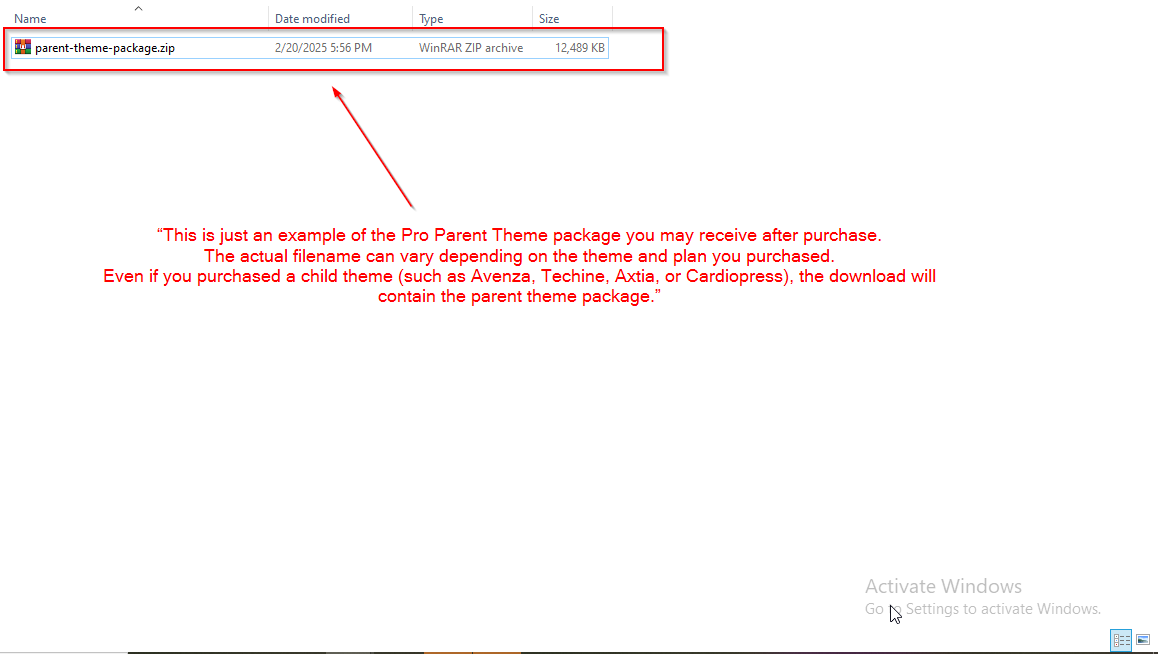
(Below is an example of the Parent Theme package you will receive after purchasing a Pro theme.
This helps you understand that even if you purchased a child theme (like Avenza, Techine, Axtia, or Cardiopress), the ZIP file you download will contain the parent theme package.)
Why Clients Get Confused
Example:
You purchase Avenza Pro, but you receive the file Avril Pro.
This is correct — Avenza is a child layout inside the Avril Pro parent theme.
You simply activate it through Customizer settings.
Once you install and activate your Parent Theme Pro, you can activate the child theme layout (such as Avenza, Flavita, Axtia, Webora, etc.) directly from the Customizer.
Every parent theme includes its own child theme variations, and you can choose them using settings such as:
-
Theme Type / Template Type
-
Homepage Template
-
Header Style
-
Style Configurator
-
Color Presets
These options allow you to switch between the different child theme designs included inside the parent theme.
Where to Find the Exact Activation Steps
Since each parent theme (Avril, Gradiant, Webique, etc.) has its own child theme variations and settings, the activation steps are not the same for everyone.
That’s why we have already created separate, detailed guides for each parent theme, explaining how to activate their respective child themes.
You can check out the guide for your purchased theme here: View All Parent Theme Setup Guides
👉 You can find the activation tutorials for your theme inside its Parent Theme documentation/articles.
Simply open the article for your purchased theme (e.g., Avril Pro, Conceptly Pro, Medazin Pro), and you will see:
-
How to activate Avenza / Axtia (for Avril)
-
How to activate Techine / Convo / Azwa (for Conceptly)
-
How to activate Cardiopress (for Medazin)
These guides will help you activate the exact layout you purchased.