This section allows you to manage and customize the Slider Section of your website.You can control the visibility, content, and layout using the available theme options.
Important :
- Make sure you are logged in to your WordPress Dashboard before following the steps below.
- Go to Appearance > Customize
- Open Frontpage Sections > Slider Section
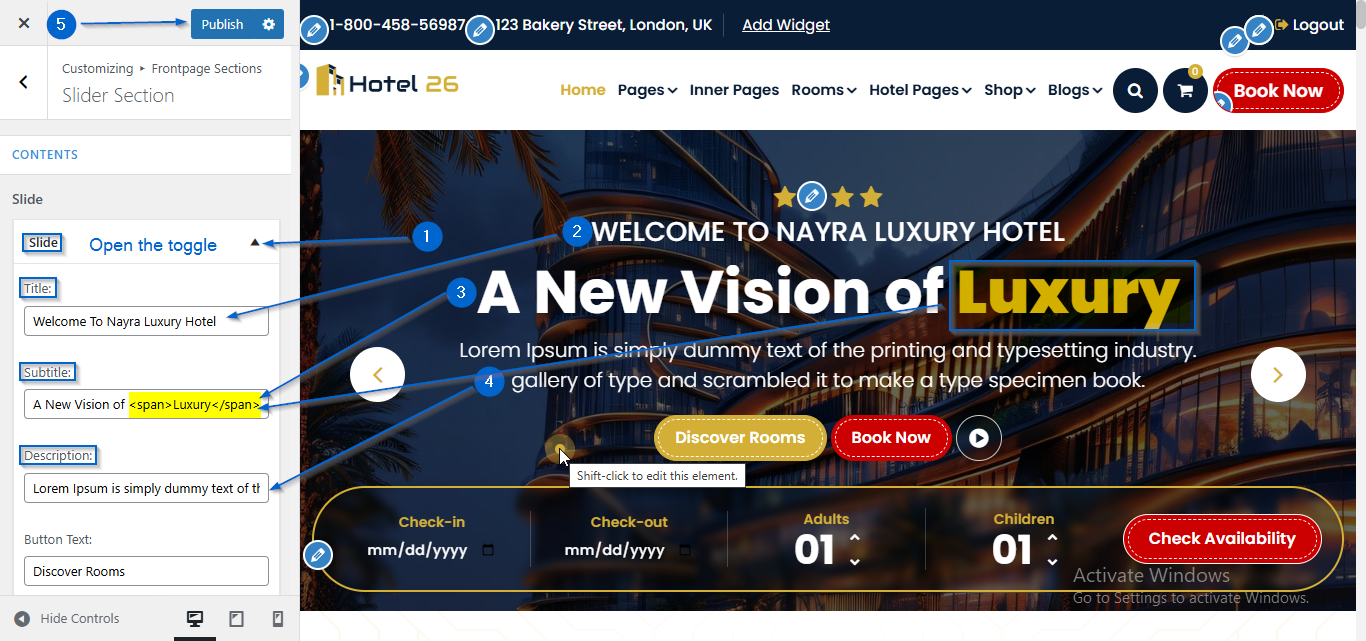
- Click to expand the Slide toggle
- Use the Title, Subtitle, and Description options to edit the content
- Click Publish
- Go to Appearance > Customize
- Open Frontpage Sections > Slider Section
- Click to expand the Slide toggle
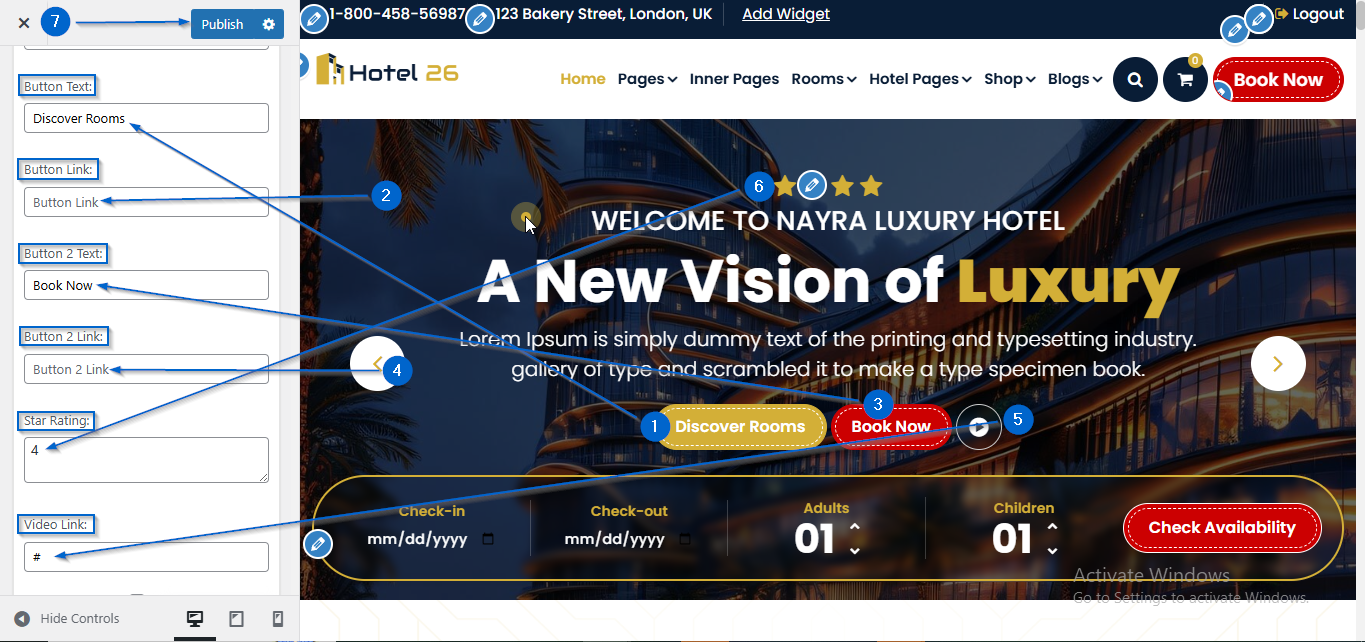
- Enter the text in the Button Text: option and the link in the Button Link: and Video Link : option
- Follow the same process for Button 2 Text and Button 2 Link
- Enter the number of stars in the Star Rating: option
- Click Publish
- Go to Appearance > Customize
- Open Frontpage Sections > Slider Section
- Click to expand the Slide toggle
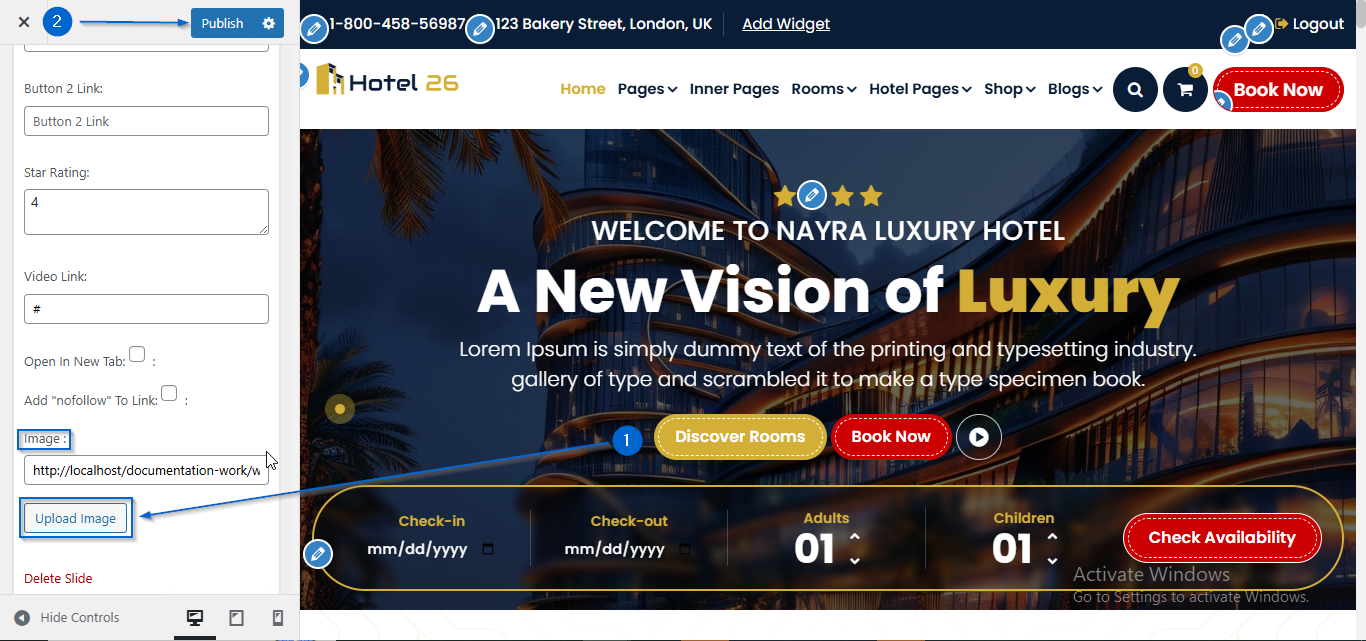
- Click Upload Image under the Image: option
- Select an image of your choice
- Click Publish
- Go to Appearance > Customize
- Open Frontpage Sections > Slider Section
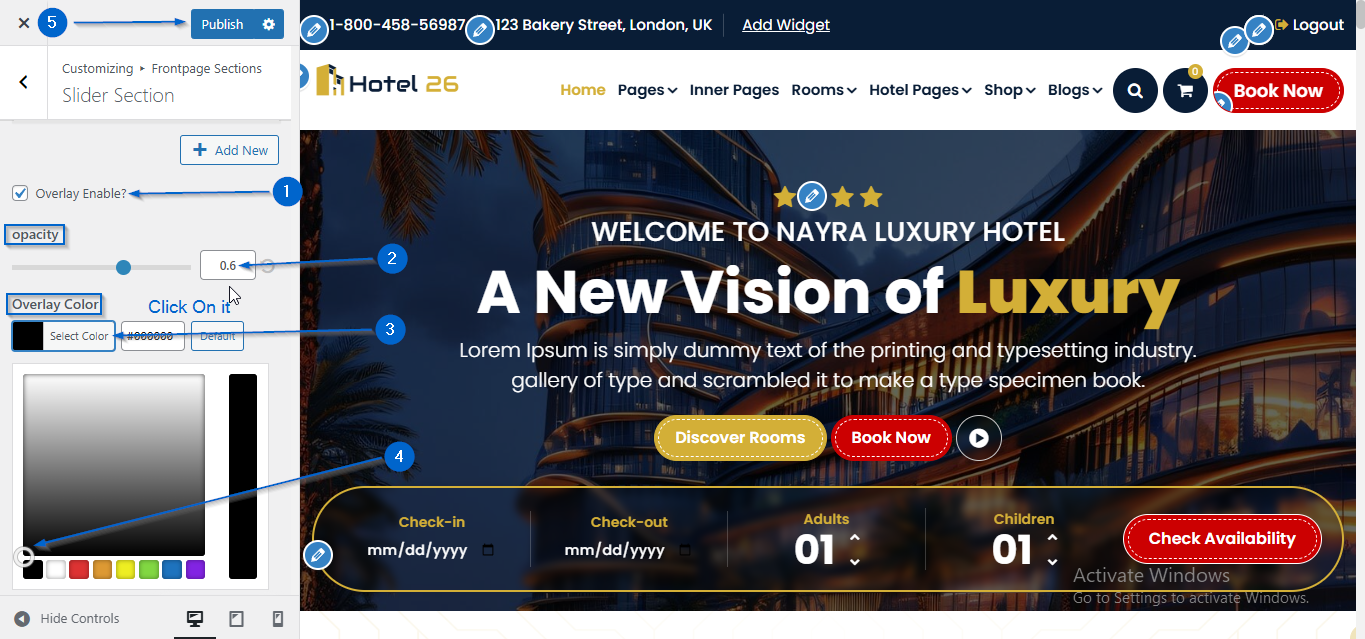
- Enable the overlay using the Overlay Enable? option
- Adjust the opacity using the Opacity option
- Choose a color using the Overlay Color option
- Click Publish
- Go to Appearance > Customize
- Open Frontpage Sections > Slider Section
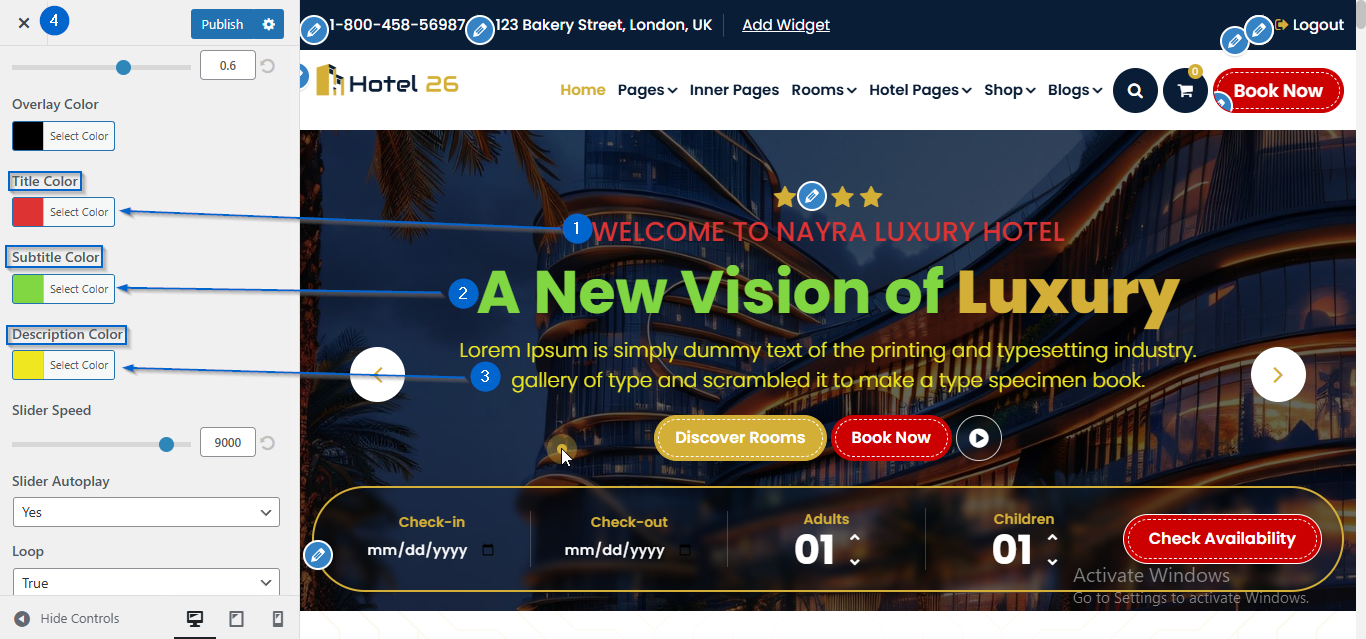
- Use the Title Color, Subtitle Color, and Description Color options to adjust their colors
- Click Publish
- Go to Appearance > Customize
- Open Frontpage Sections > Slider Section
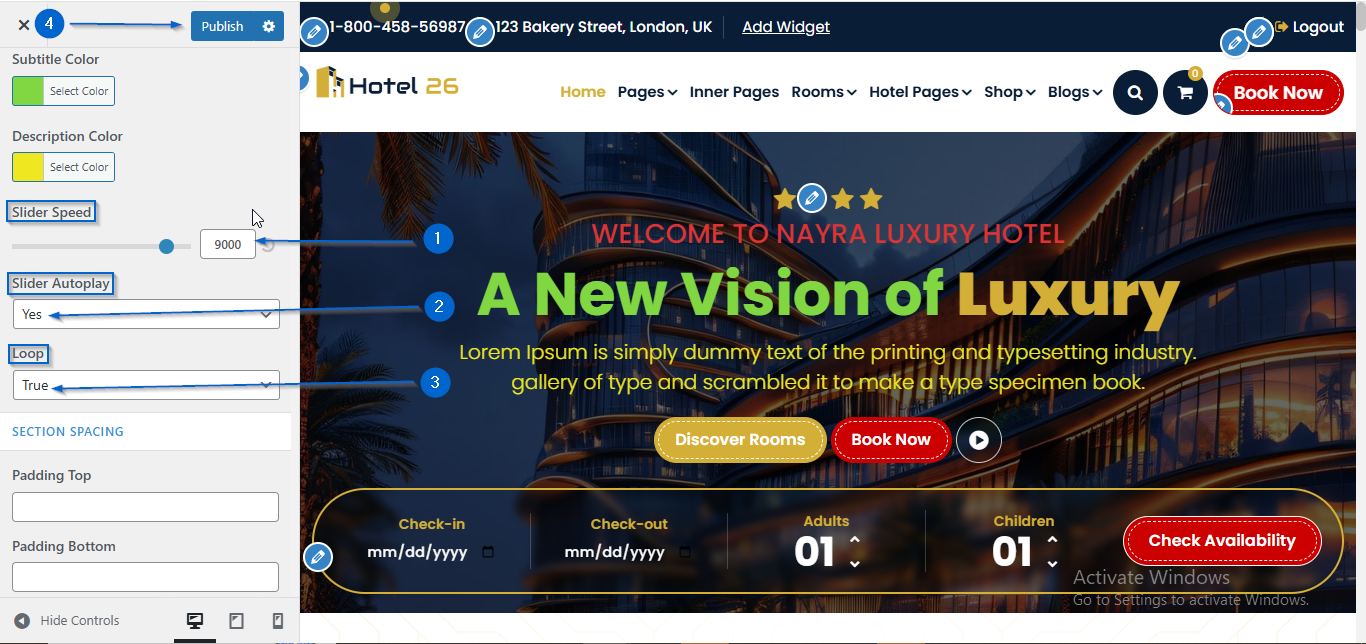
- Adjust the speed using the Slide Speed option
- Choose Yes or No from the Slider Autoplay dropdown
- Choose True or False from the Loop dropdown
- Click Publish.