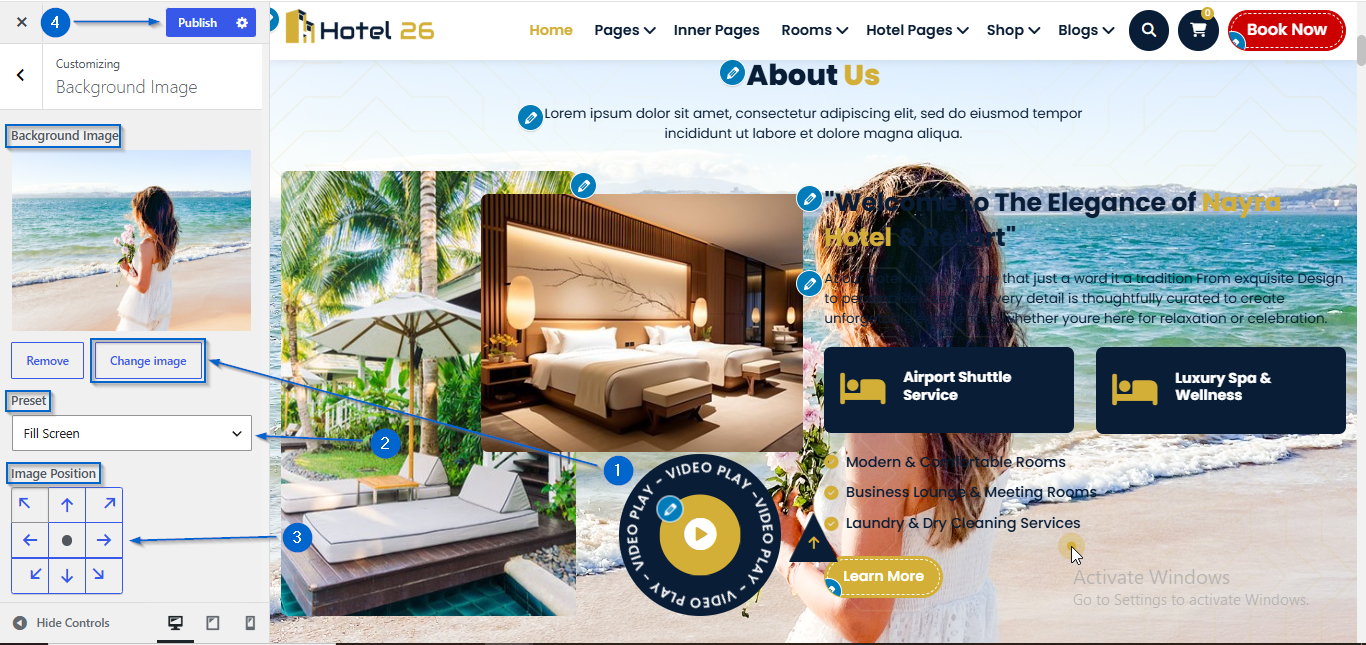
This section allows you to manage the Global Theme Options for your website. You can configure site-wide settings and customize various theme features, such as the preloader, section reordering, and other general options that affect the overall functionality and appearance of your website.
- Go to Appearance > Customize
- Open General > Predloader
- Use the Hide/Show option to configure the visibility
- Enter the text in the Preloader Text option
- Click Publish
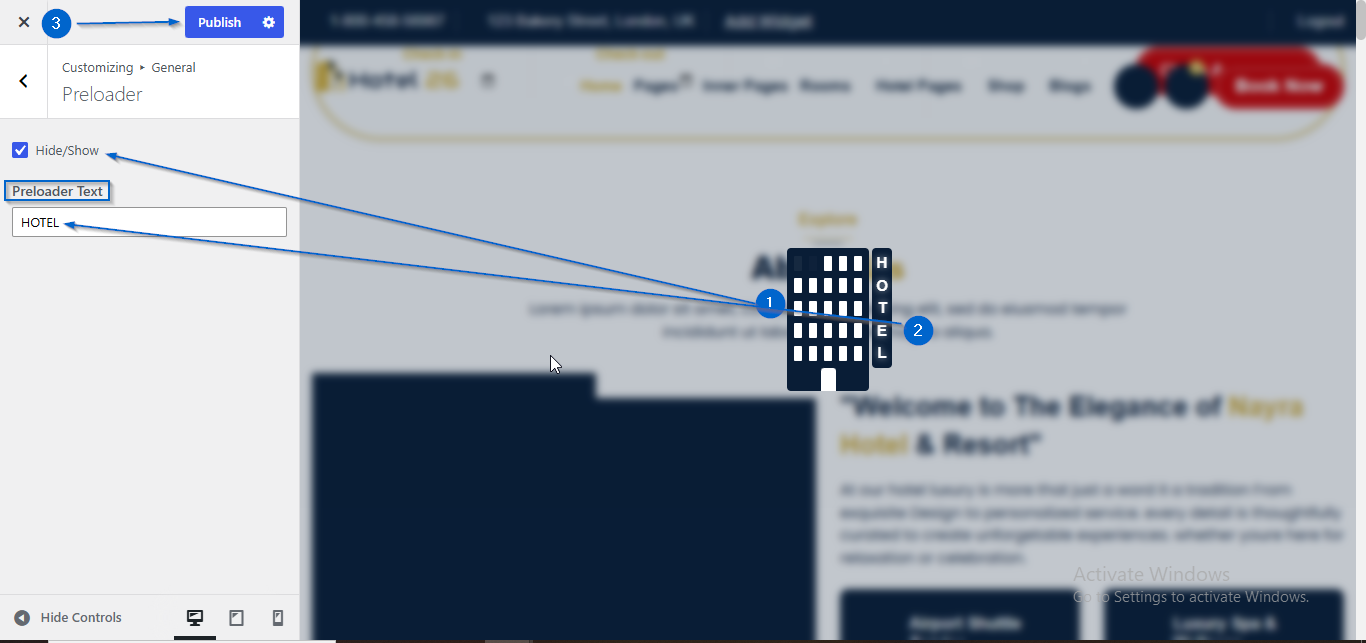
- Go to Appearance > Customize
- Open General > Mouse Cursor Animations
- Use the Hide/Show option to configure the visibility
- Click Publish
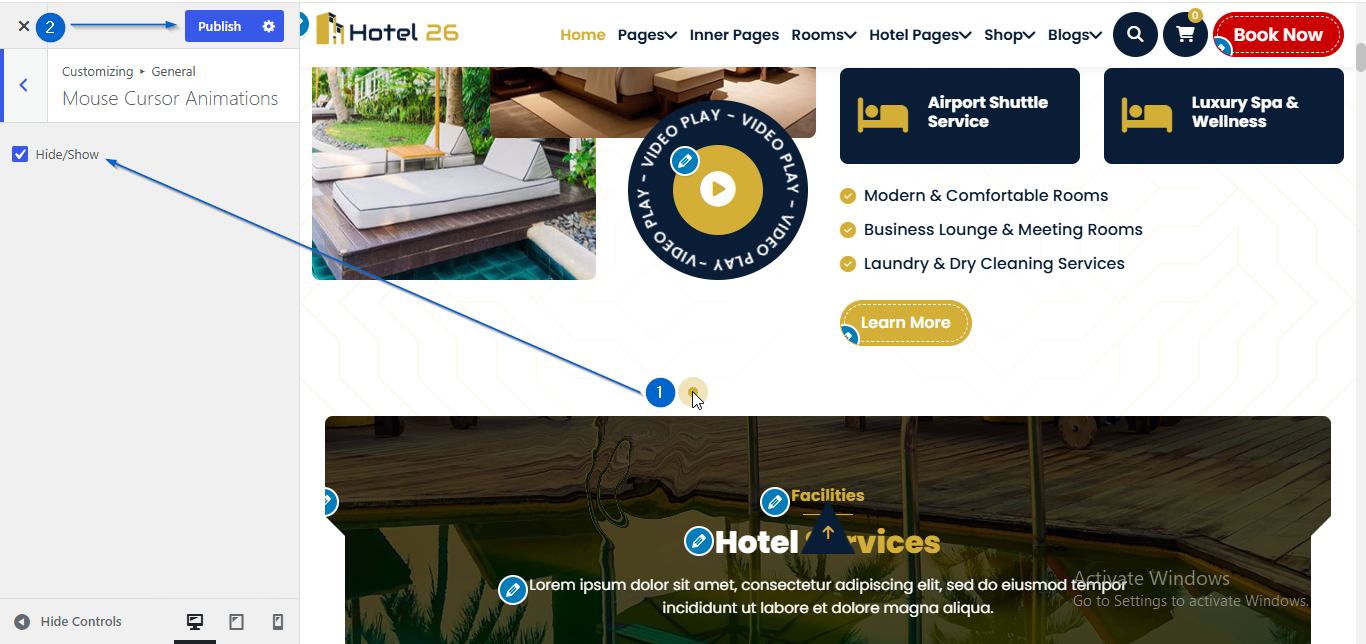
- Go to Appearance > Customize
- Open General > Container
- Use the Container Width option to adjust the width
- Click Publish
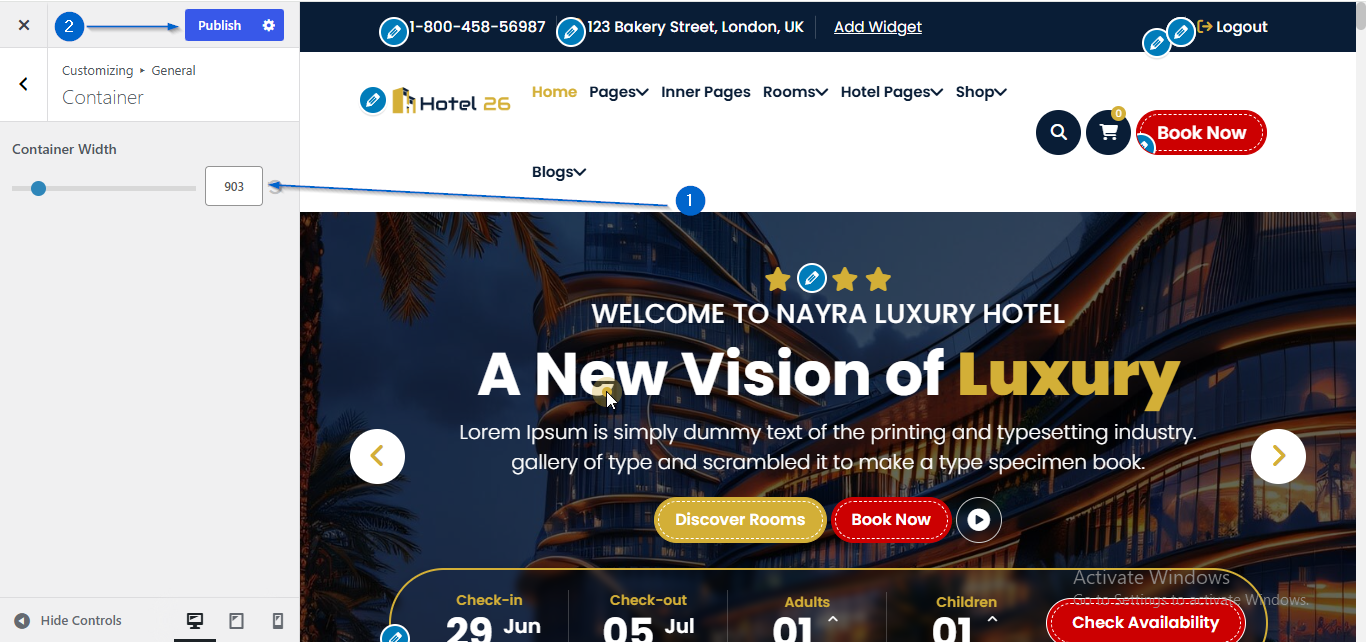
- Go to Appearance > Customize
- Open General > Sidebar
-
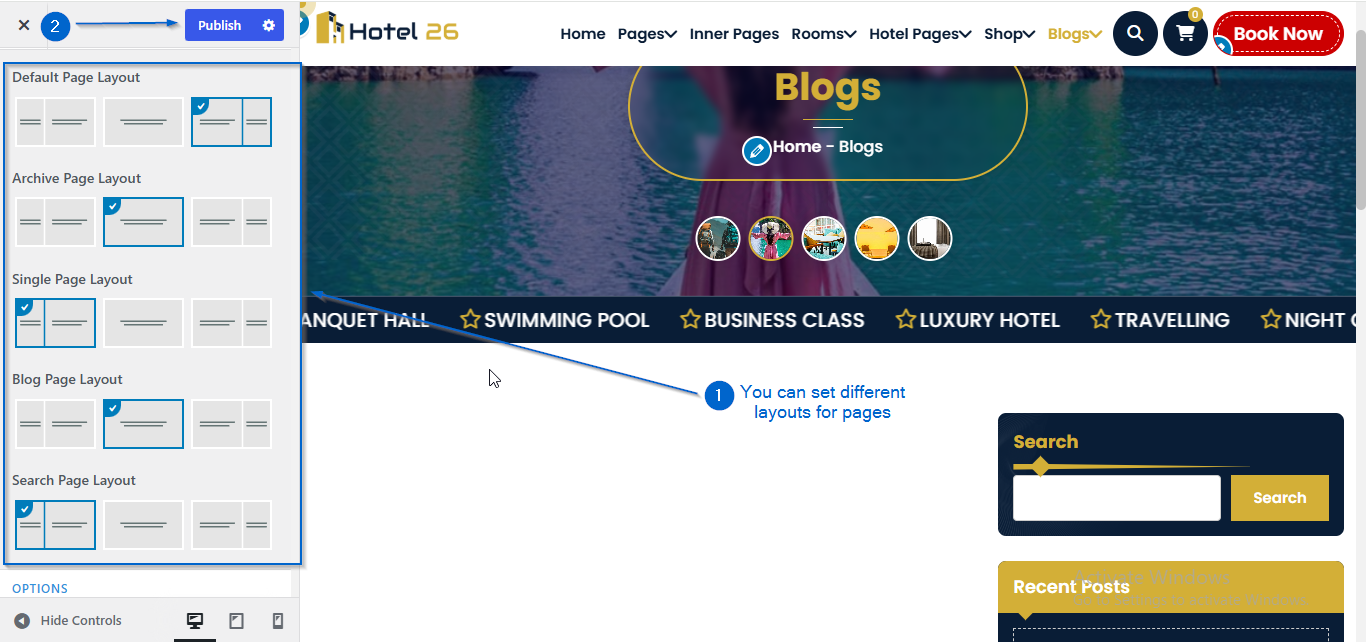
Select the sidebar layout for pages using the available options:
- Left Sidebar
- Right Sidebar
- No Sidebar
- Click Publish
- Go to Appearance > Customize
- Open General > Sidebar
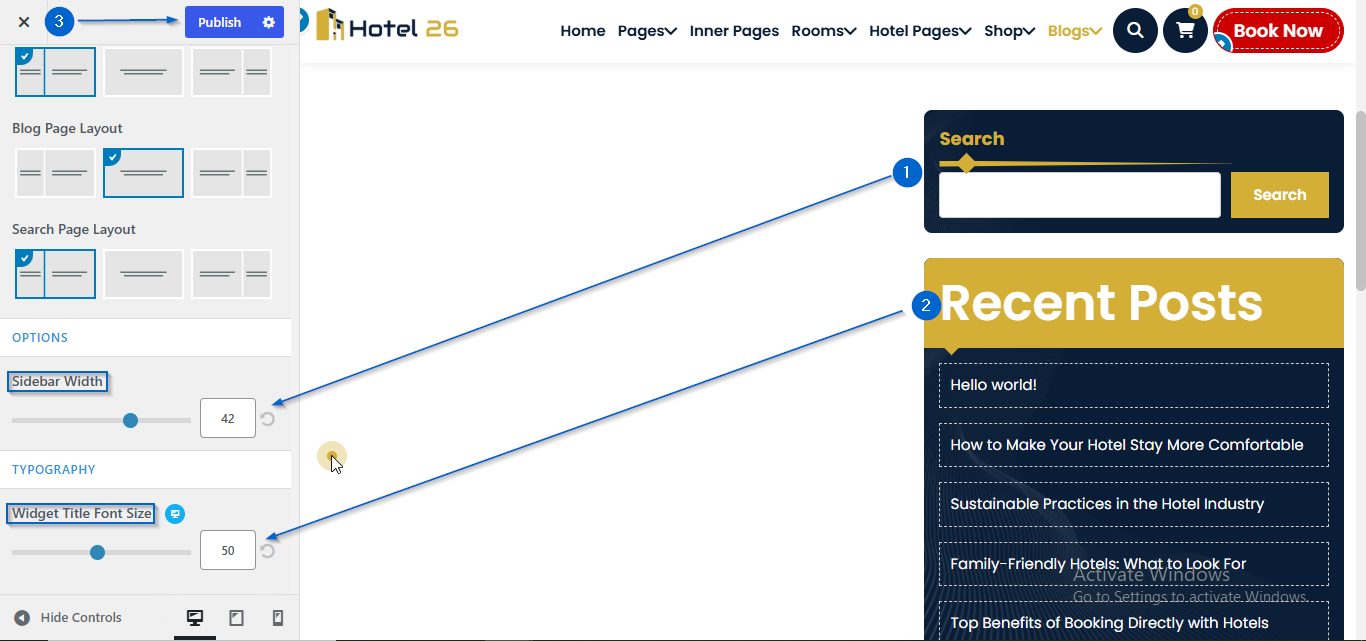
- Adjust the width using the Sidebar Width option
- Set the font size size using the Widget Title Font Size option
- Click Publish
- Go to Appearance > Customize
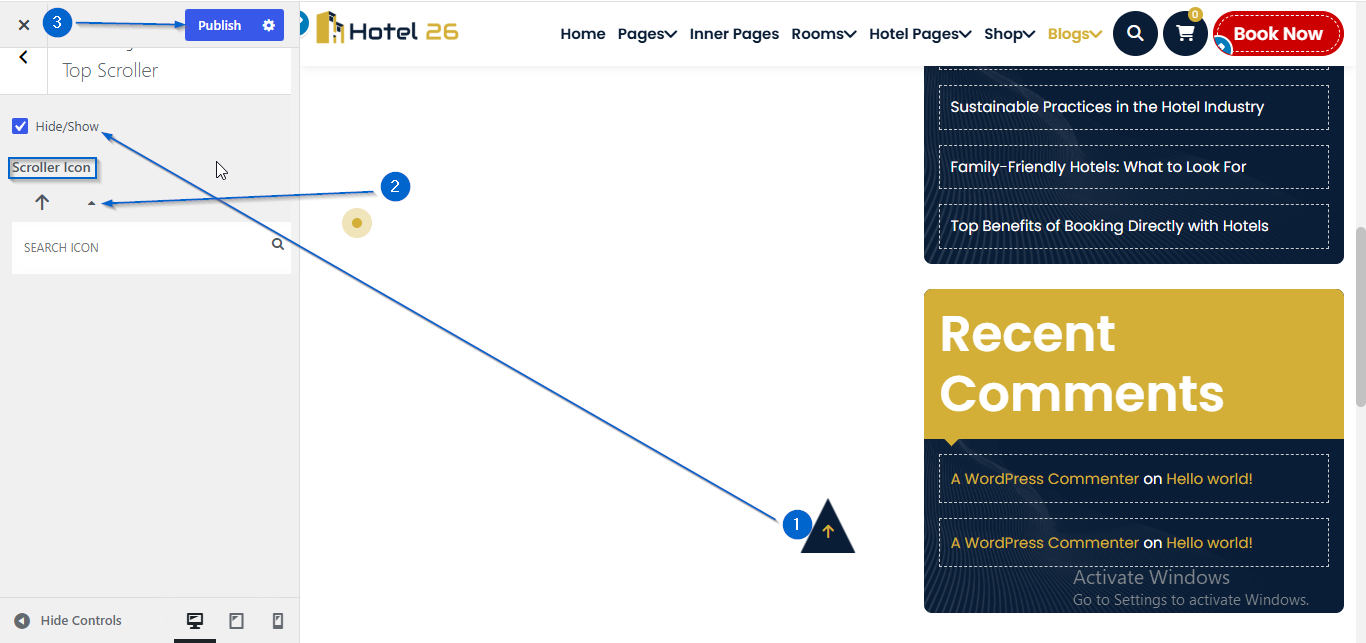
- Open General > Top Scroller
- Use the Hide/Show option to configure the visibility
- Click Publish
- Go to Appearance > Customize
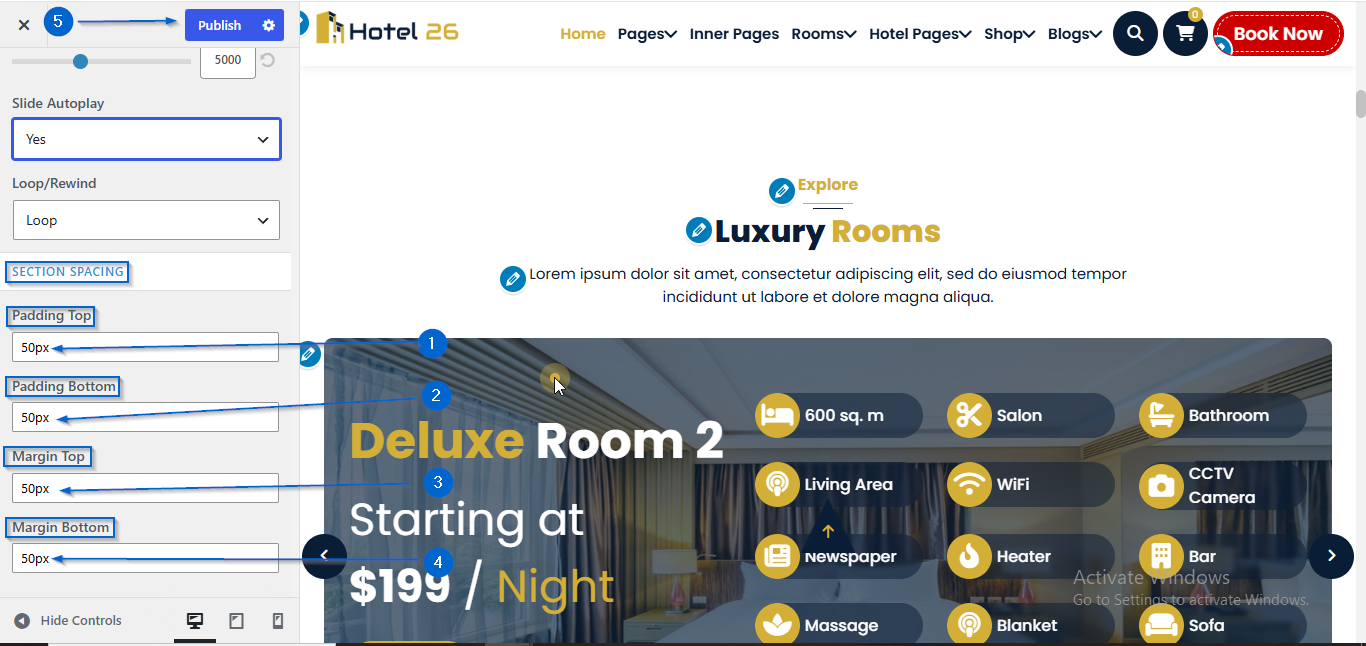
- Open Any Section Settings where this setting is available
- Use the Top and Bottom settings to customize the spacing for Margin and Padding
- Click Publish
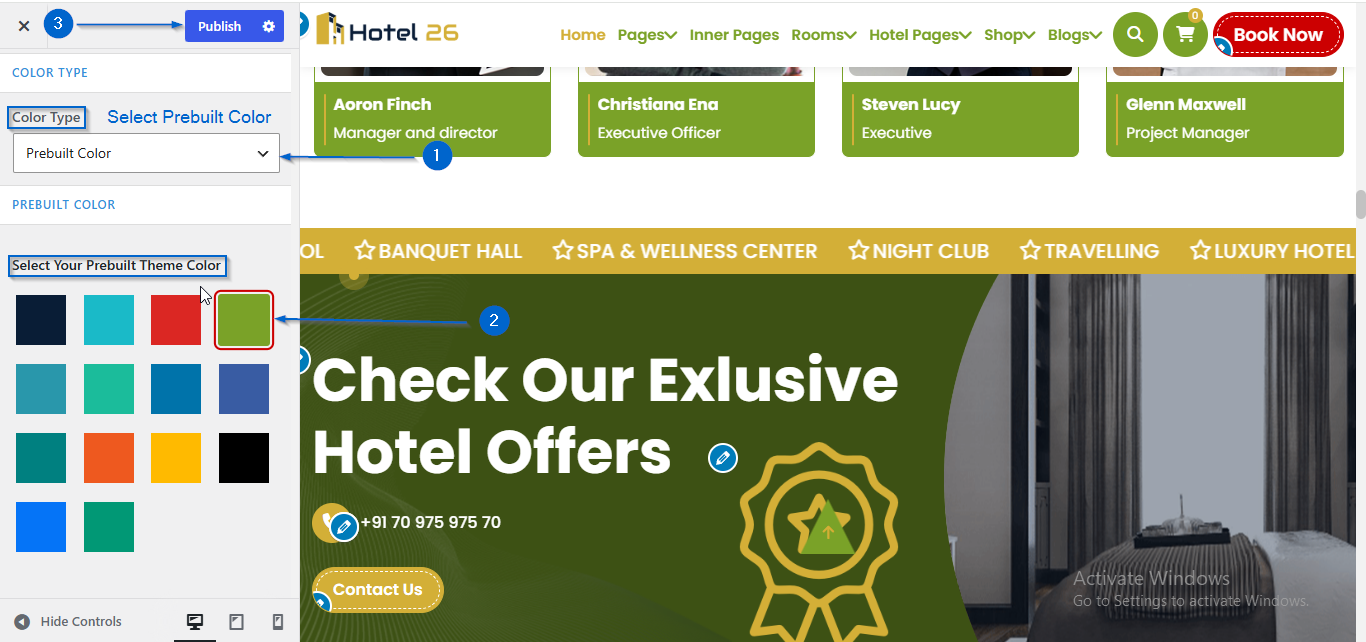
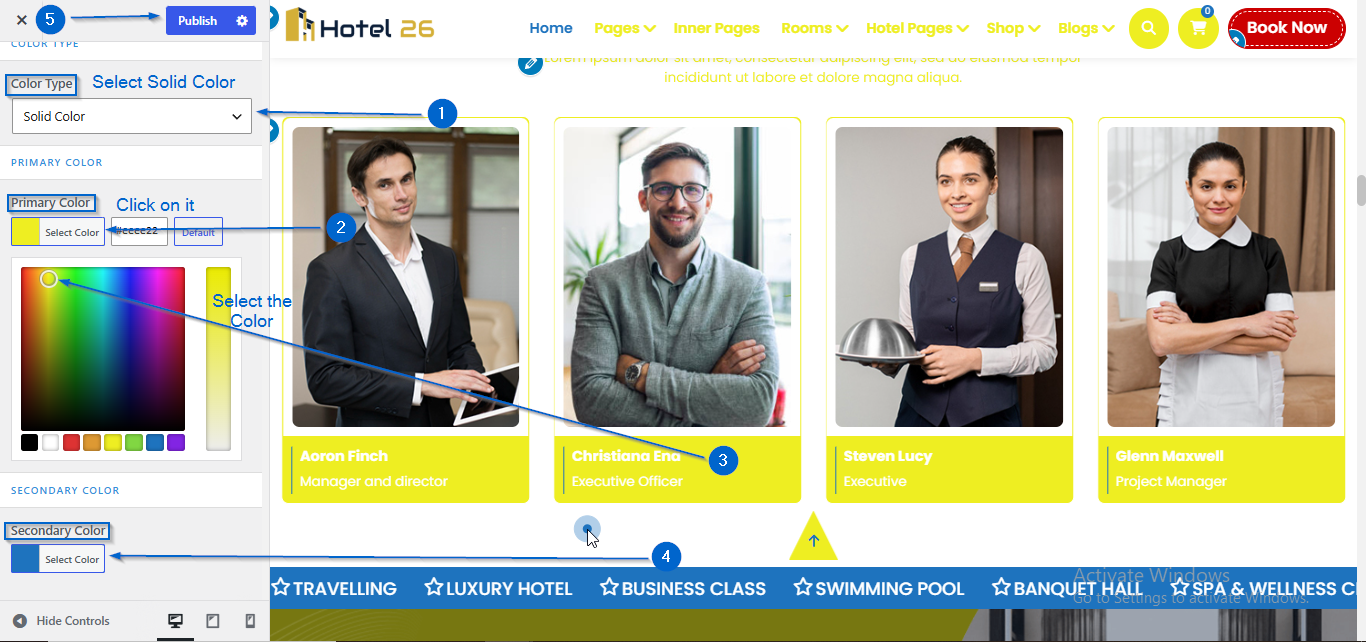
You can customize the theme color using Prebuilt Colors or Solid Colors.
(a) Prebuilt Color
- Go to Appearance > Customize
- Open Style Configurator > Theme Color
- Select Prebuilt Color from the Color Type option
- Choose a color palette of your choice
- Click Publish
(b) Solid Color
- Go to Appearance > Customize
- Open Style Configurator > Theme Color
- Select Solid Color from the Color Type option
- Choose the Primary and Secondary colors
- Click Publish
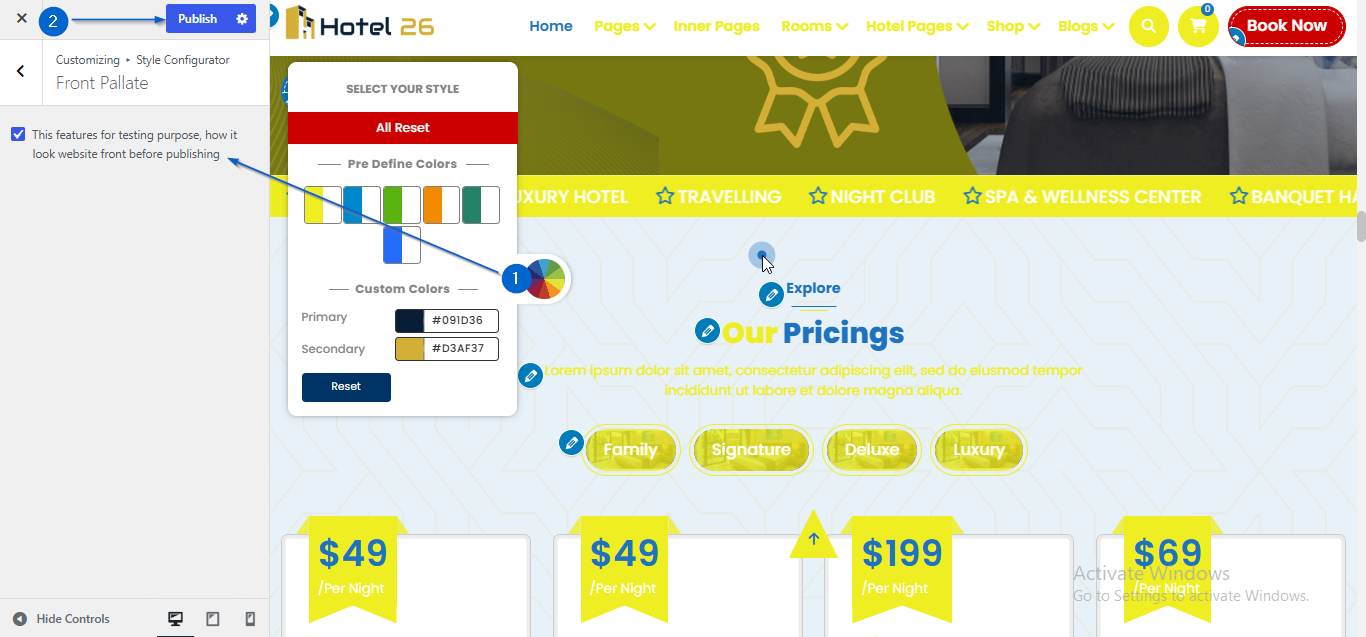
- Go to Appearance > Customize
- Open Style Configurator > Front Pallate
- Use the checkbox to configure the visibility
- Click Publish
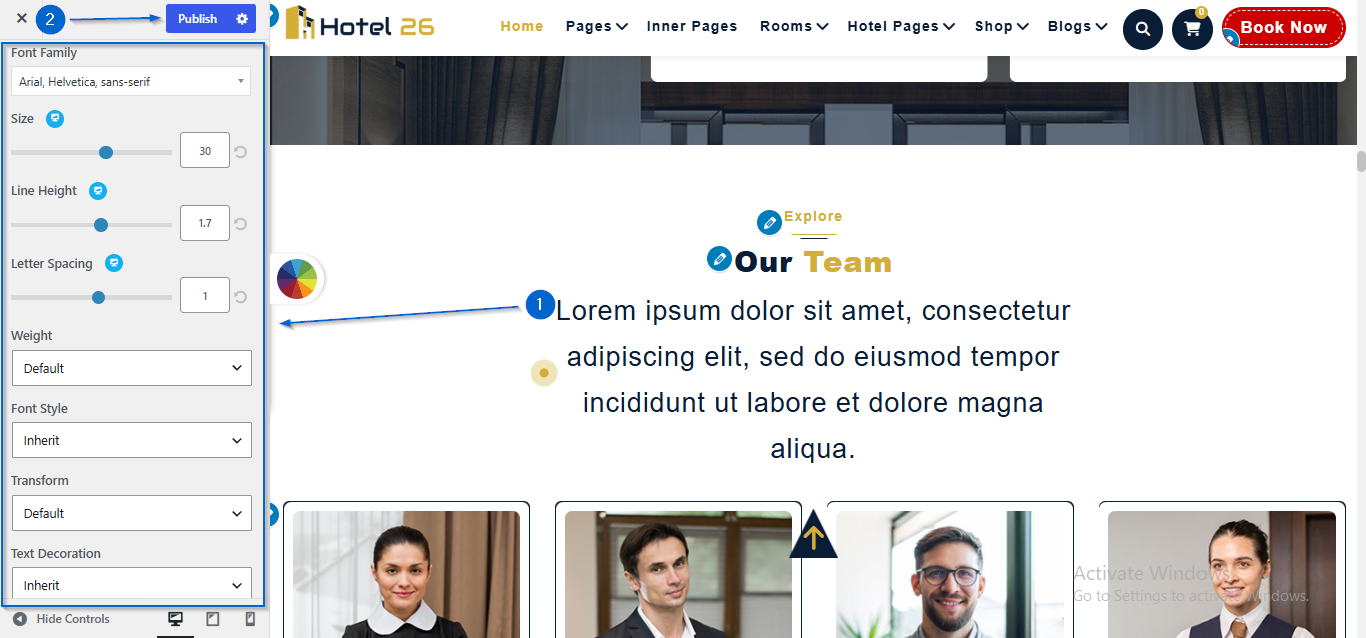
- Go to Appearance > Customize
- Open Typography > Body Typography
- Configure paragraph typography using options such as Font Size, Line Height, Font Family and other font settings
- Click Publish
- Go to Appearance > Customize
- Open Typography > Heading Typography
- Configure paragraph typography using options such as Font Size, Line Height, Font Family and other font settings
- Repeat the same steps for H1, H2, and other heading levels
- Click Publish
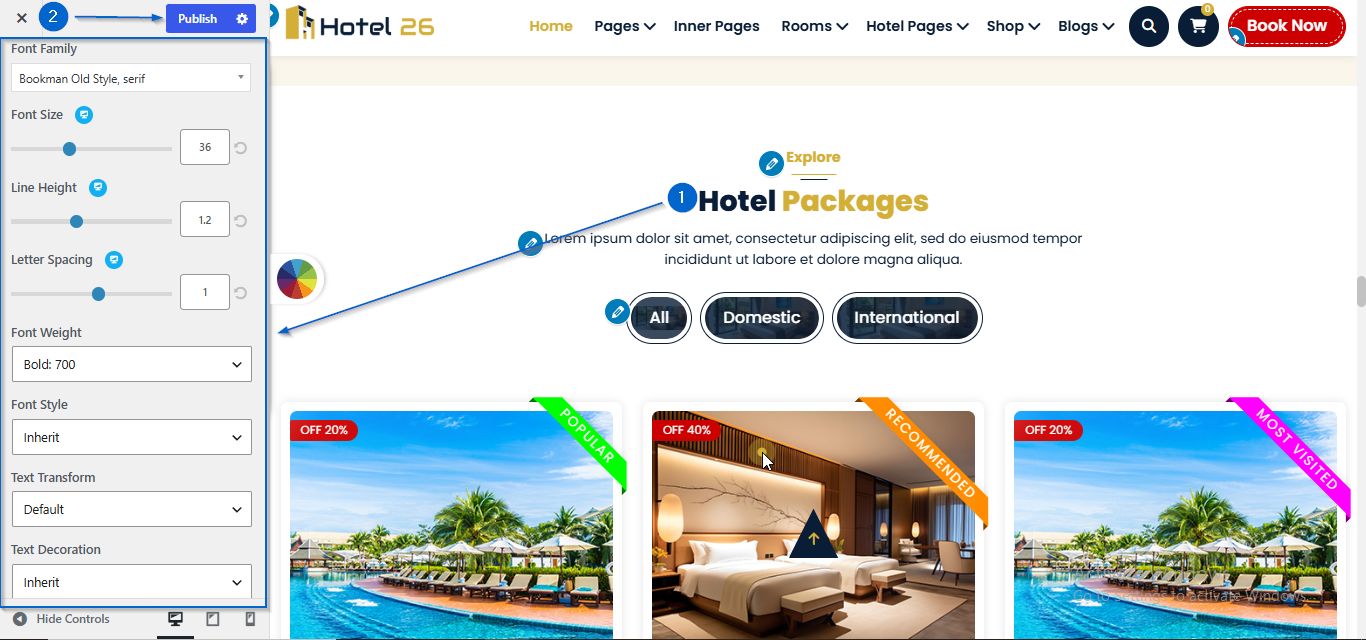
- Go to Appearance > Customize
- Open Typography > Menu Typography
- Configure paragraph typography using options such as Font Size, Line Height, Font Family and other font settings
- Click Publish
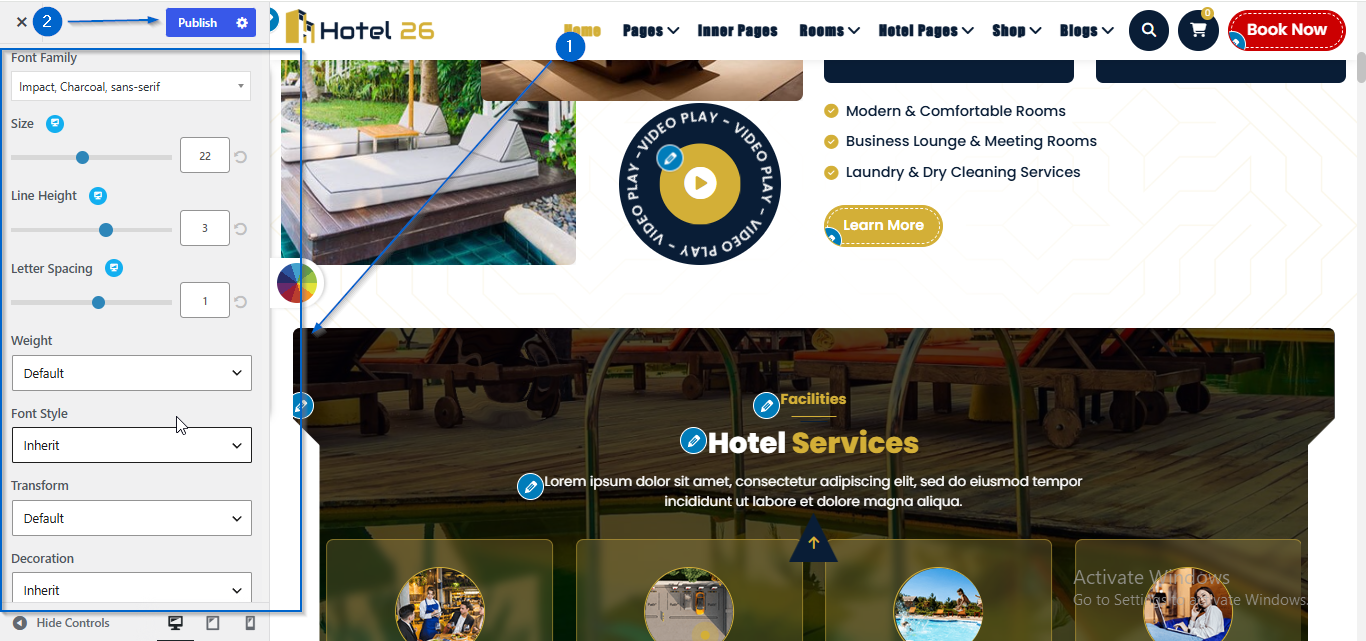
- Go to Appearance > Customize
- Open Sections Reorder
- Use the Eye icon to show or hide sections
- Drag and drop the sections upward or downward to change their order
- Click Publish
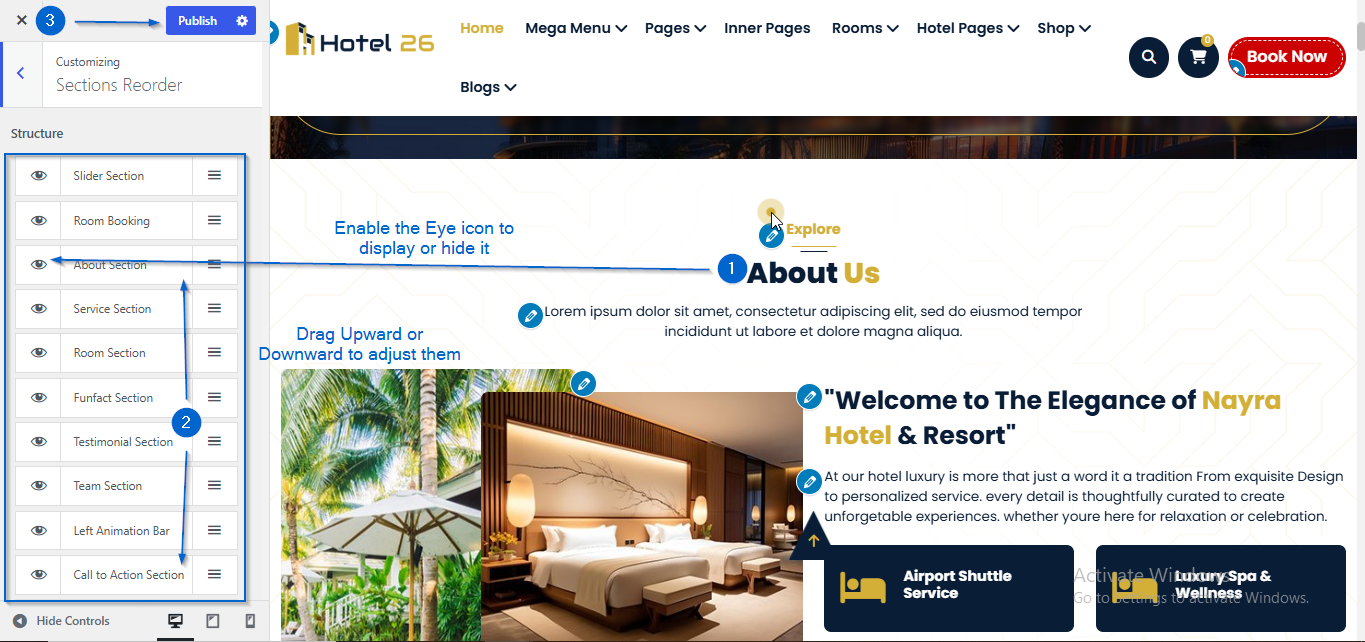
- Go to Appearance > Customize
- Open Color
- Click Select Color to choose the background color.
- Click Publish
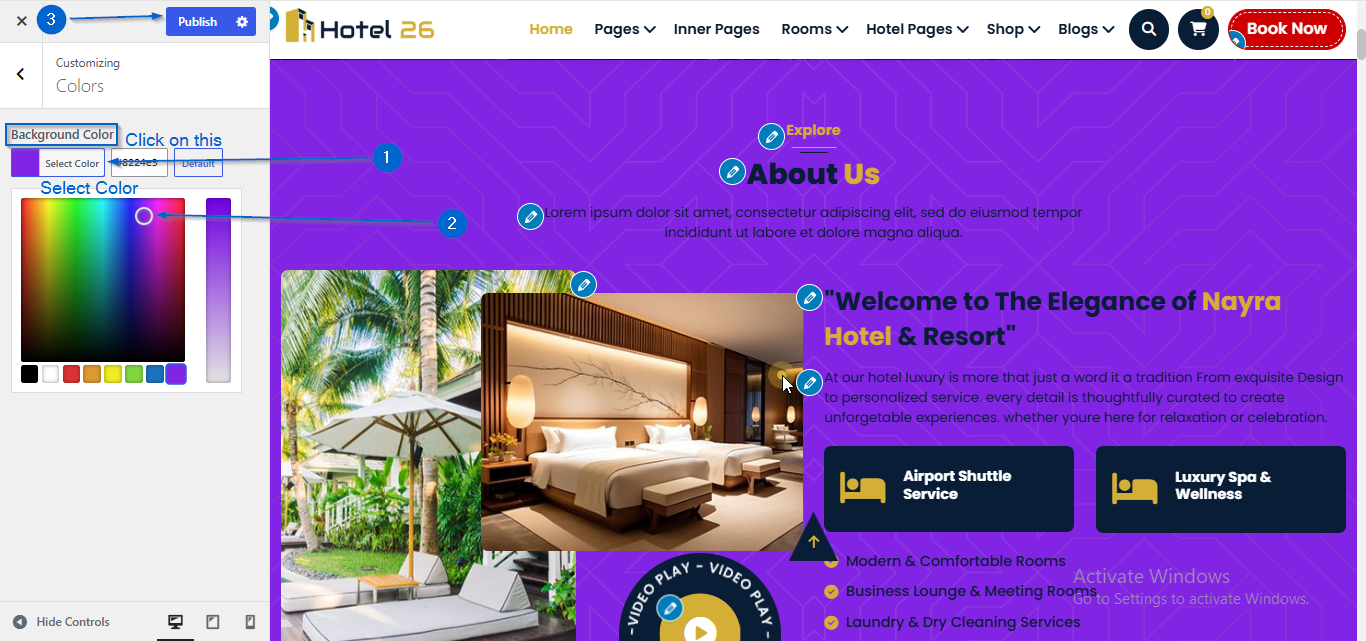
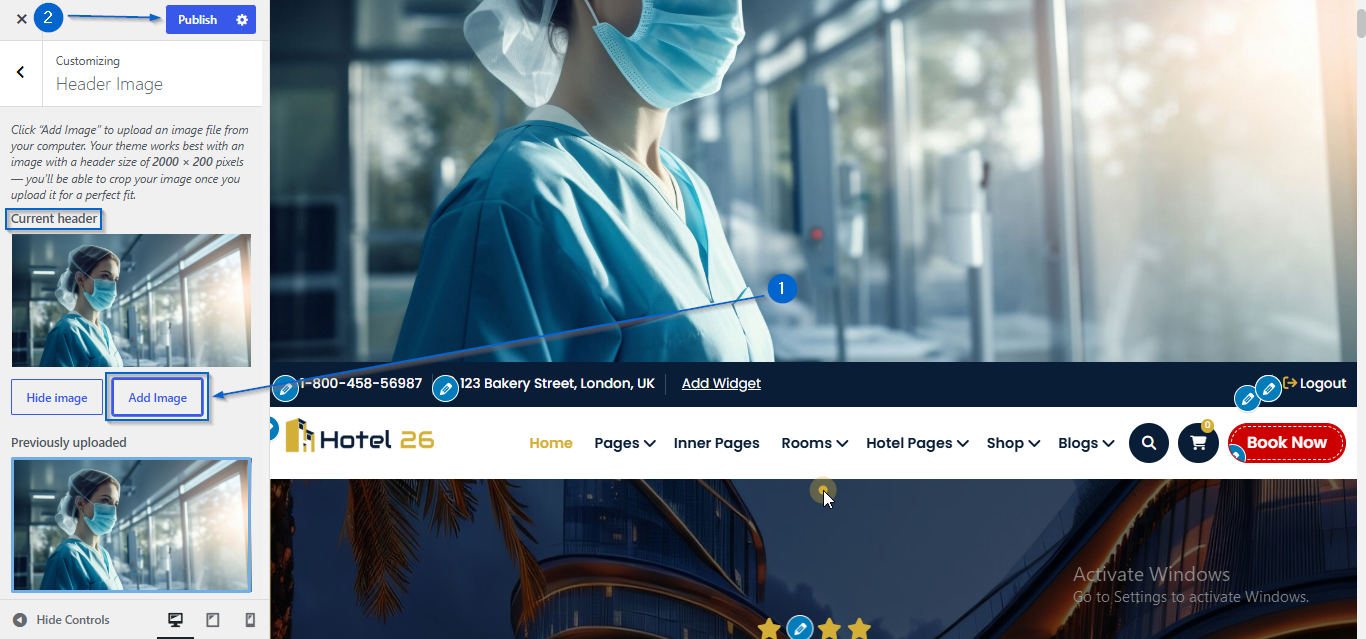
- Go to Appearance > Customize
- Open Header Image
- Click Add Image under the Current header option
- Select an image of your choice
- Click Publish
- Go to Appearance > Customize
- Open Background Image
- Click Change Image under the Background Image option
- Use the Preset and Image Position options to adjust the background image
- Click Publish