
This section allows you to manage and customize the Room Booking Section of your website.You can control the visibility, content, and layout using the available theme options.
Important :
- Make sure you are logged in to your WordPress Dashboard before following the steps below.
Before you begin, make sure the WP Hotel Booking plugin is installed and activated.
- Go to Hotel Booking > Rooms
- Click Add New
- Enter the Room title
- Add the Room description
- Select the Room Type
- Set a Featured Image
- Go to the Room Settings
- Configure the available room settings, such as General, Pricing, Gallery, FAQ, etc.
- Click Publish

- Go to Appearance > Customize
- Open Frontpage Sections > Room Booking
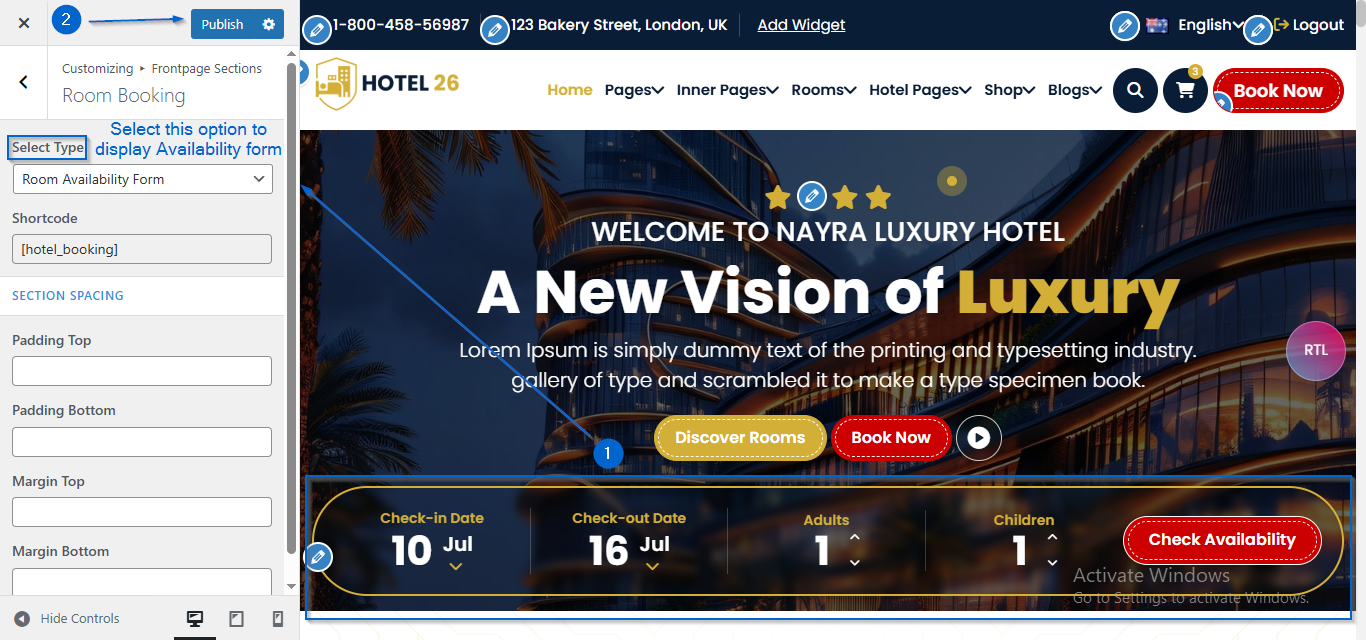
- Select the Room Availability Form option under Select Type to display the form
- Click Publish
- Go to Appearance > Customize
- Open Frontpage Sections > Room Booking
- Select the Room Slider option under Select Type to display the slider
- Click Publish

- Go to Appearance > Customize
- Open Frontpage Sections > Room Booking
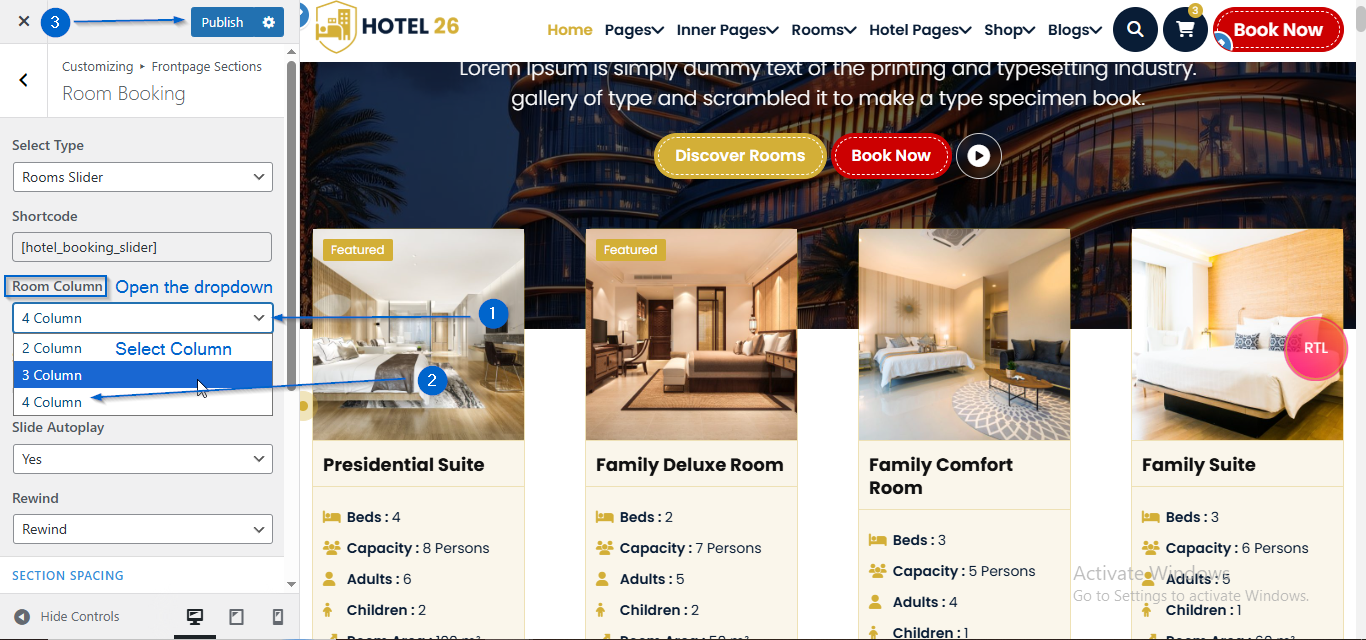
- Under the Room Column option, open the dropdown to choose the number of columns you want to display
- Click Publish
- Go to Appearance > Customize
- Open Frontpage Sections > Room Booking
- Adjust the speed using the Slide Speed option
- Choose Yes or No from the Slider Autoplay dropdown
- Choose Loop or Rewind from the Loop/Rewind dropdown
- Click Publish
