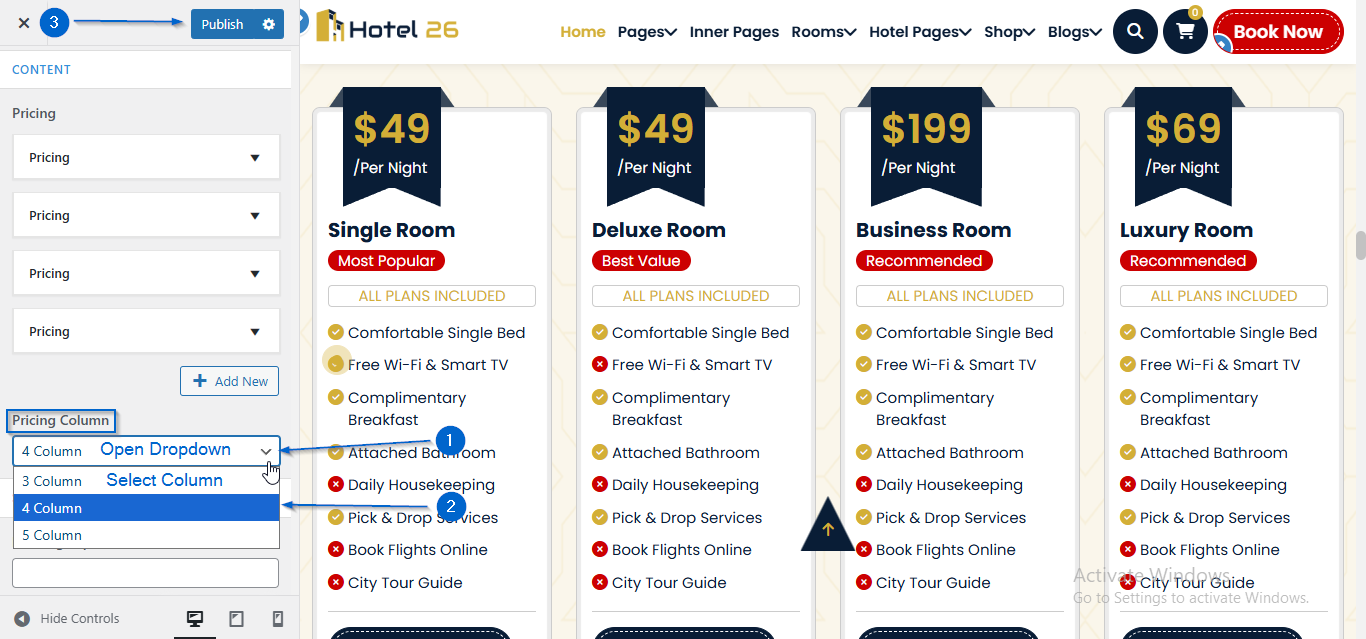
This section allows you to manage and customize the Pricing Section of your website.You can control the visibility, content, and layout using the available theme options.
Important :
- Make sure you are logged in to your WordPress Dashboard before following the steps below.
- Go to Appearance > Customize
- Open Frontpage Sections > Pricing Section
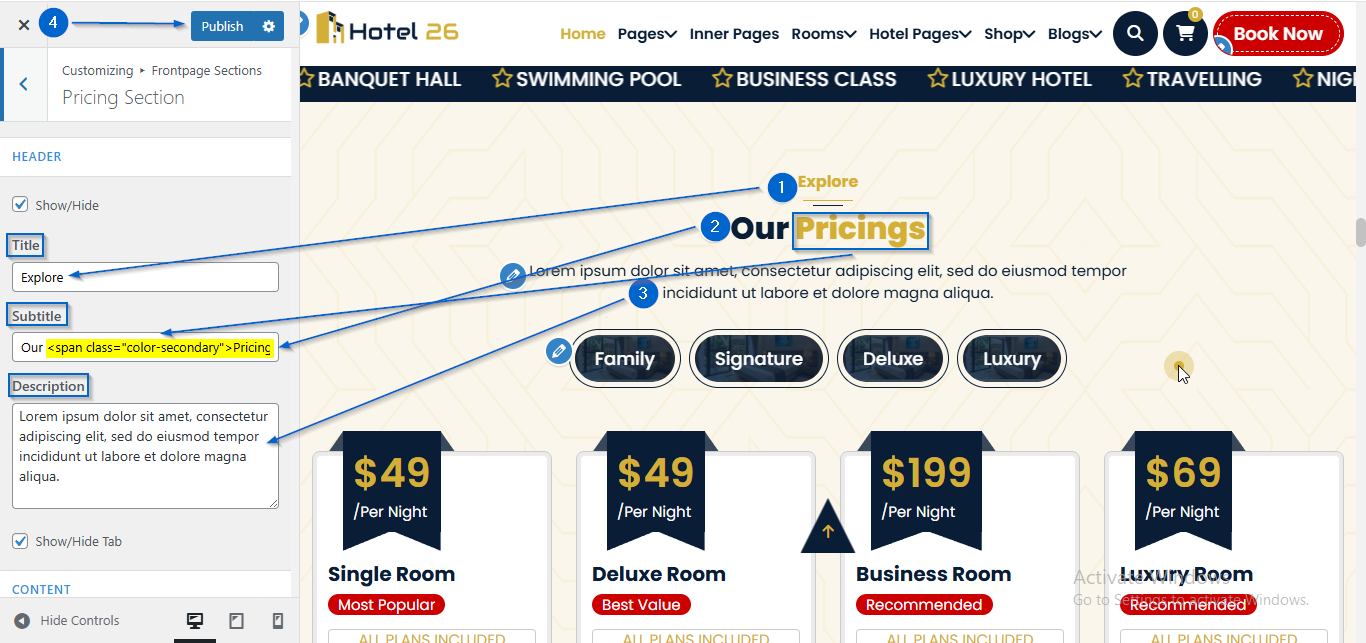
- Use the Title, Subtitle, and Description options to add the section heading details.
- Click Publish
- Go to Appearance > Customize
- Open Frontpage Sections > Pricing Section
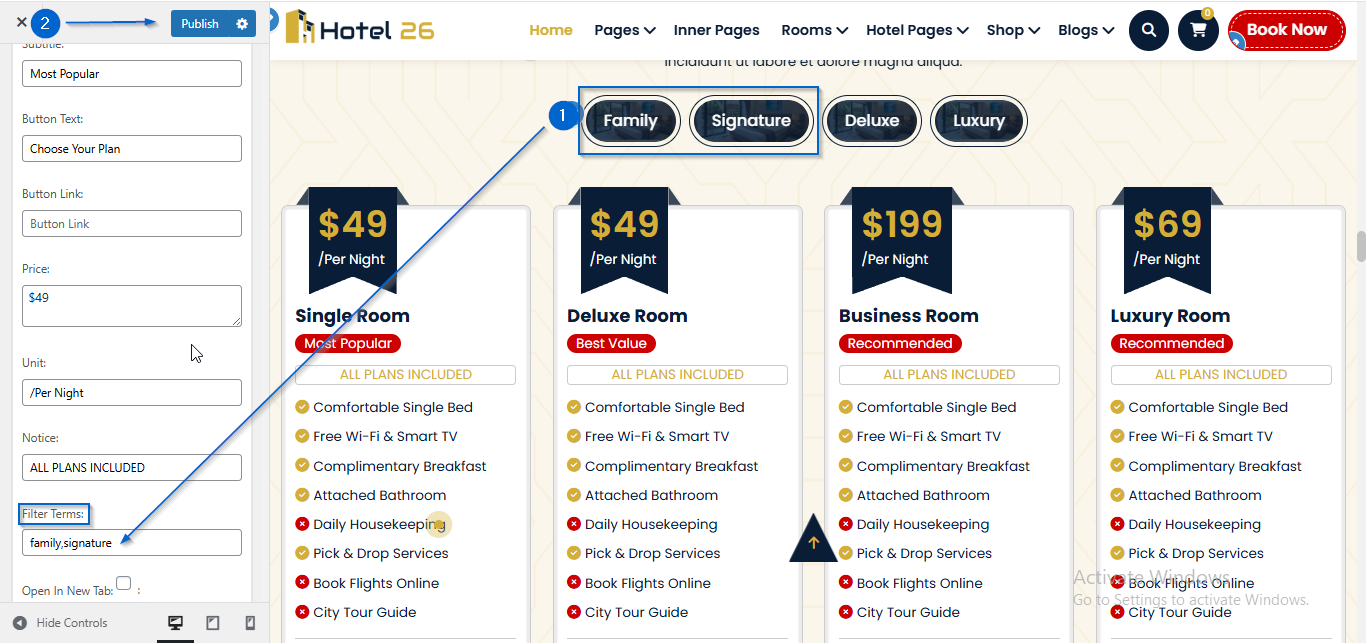
- Click to expand the Pricing toggle
- Enter the category name in the Filter Terms option
- Separate multiple categories with a comma (,)
- Click Publish
- Go to Appearance > Customize
- Open Frontpage Sections > Pricing Section
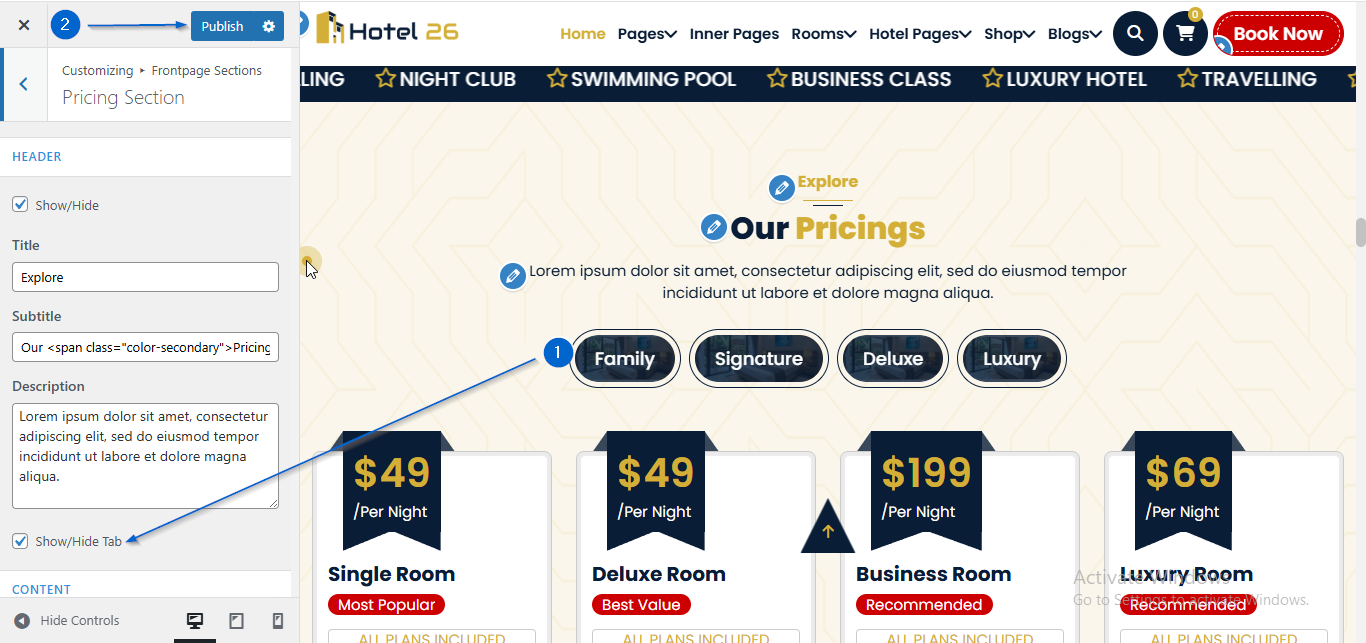
- Use the Show/Hide Tab option to configure the visibility
- Click Publish
- Go to Appearance > Customize
- Open Frontpage Sections > Pricing Section
- Click to expand the Pricing toggle
- Use the Price and Unit: options to edit the content
- Click Publish
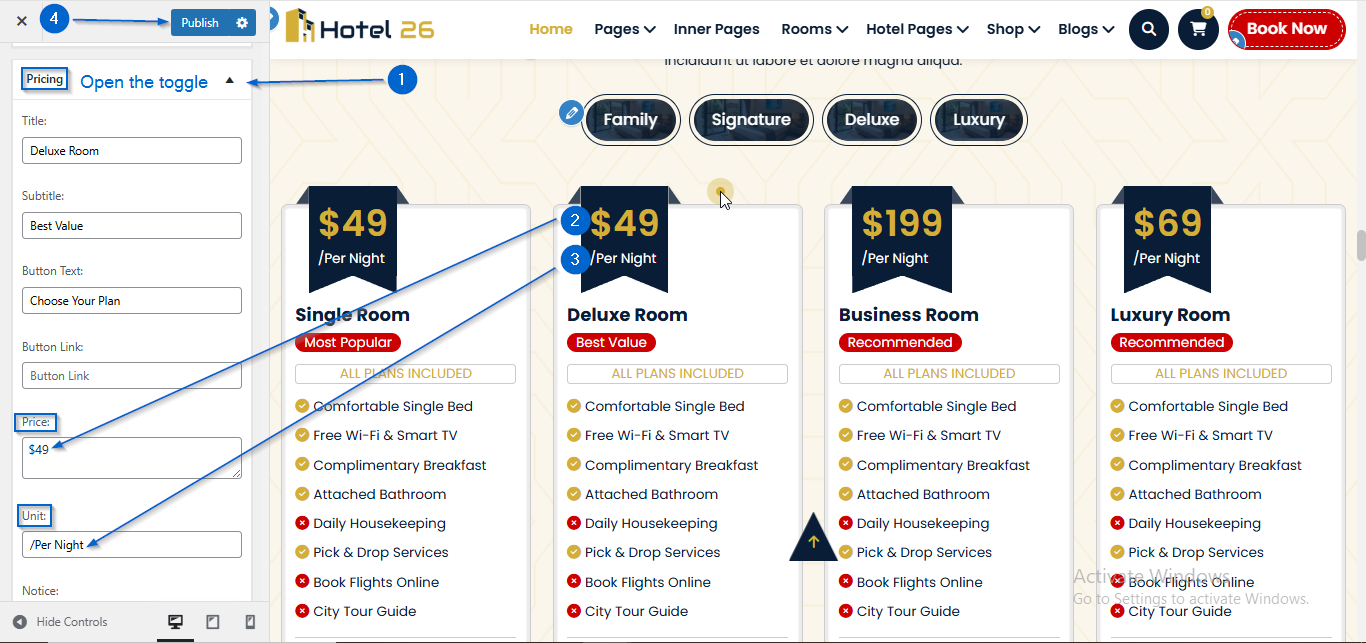
- Go to Appearance > Customize
- Open Frontpage Sections > Pricing Section
- Click to expand the Pricing toggle
- Use the Title and Subtitle options to edit the content
- Click Publish
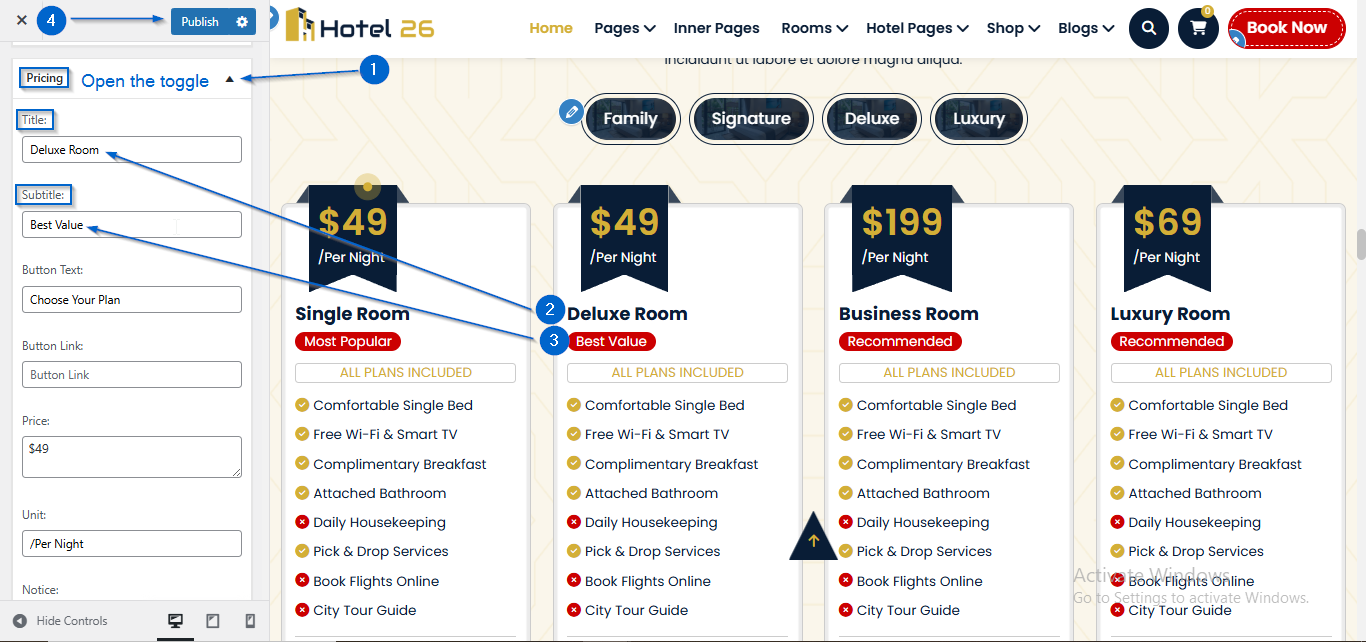
- Go to Appearance > Customize
- Open Frontpage Sections > Pricing Section
- Click to expand the Pricing toggle
- Use the Notice: option to edit the content
- Click Publish
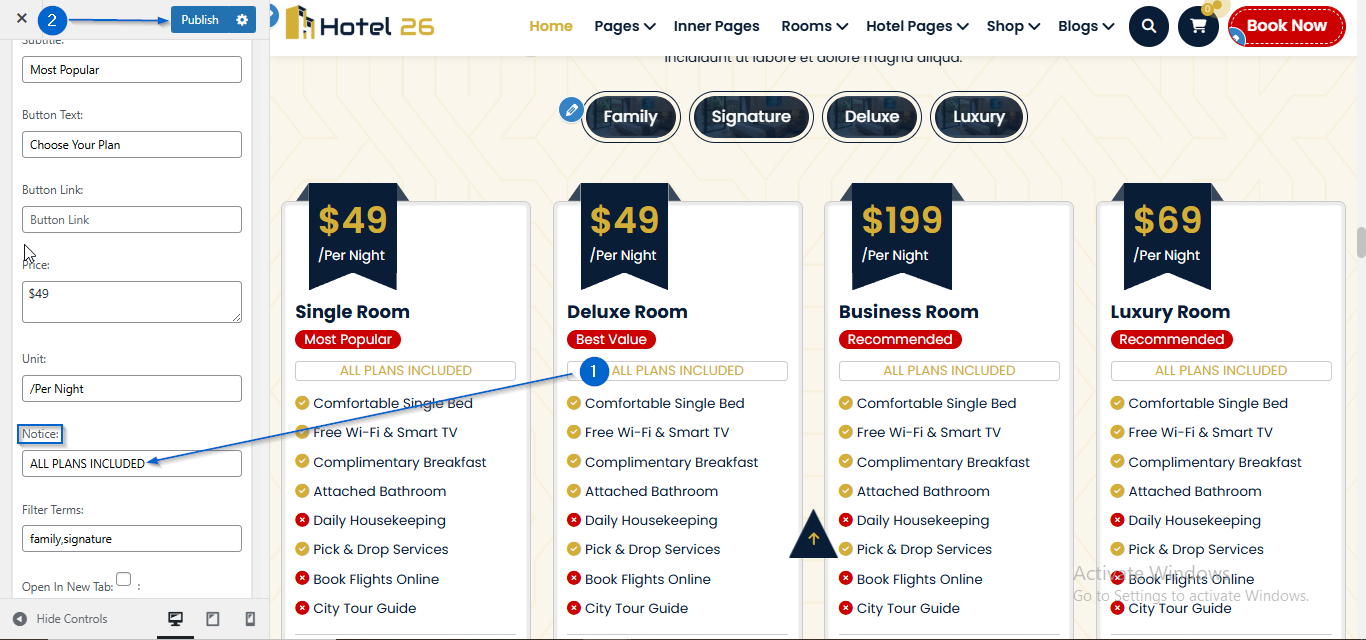
- Go to Appearance > Customize
- Open Frontpage Sections > Pricing Section
- Click to expand the Pricing toggle
- Use the second field under the Repeaters [If Section Has] option to add the content
- Click Publish
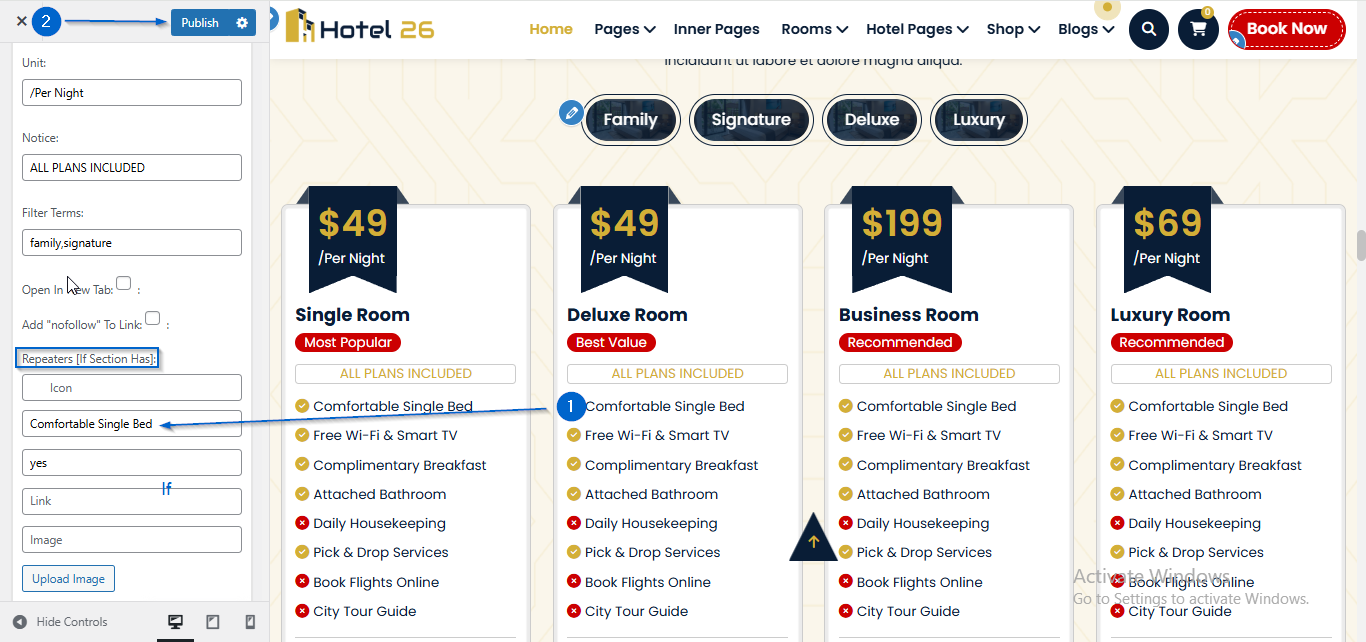
- Go to Appearance > Customize
- Open Frontpage Sections > Pricing Section
- Click to expand the Pricing toggle
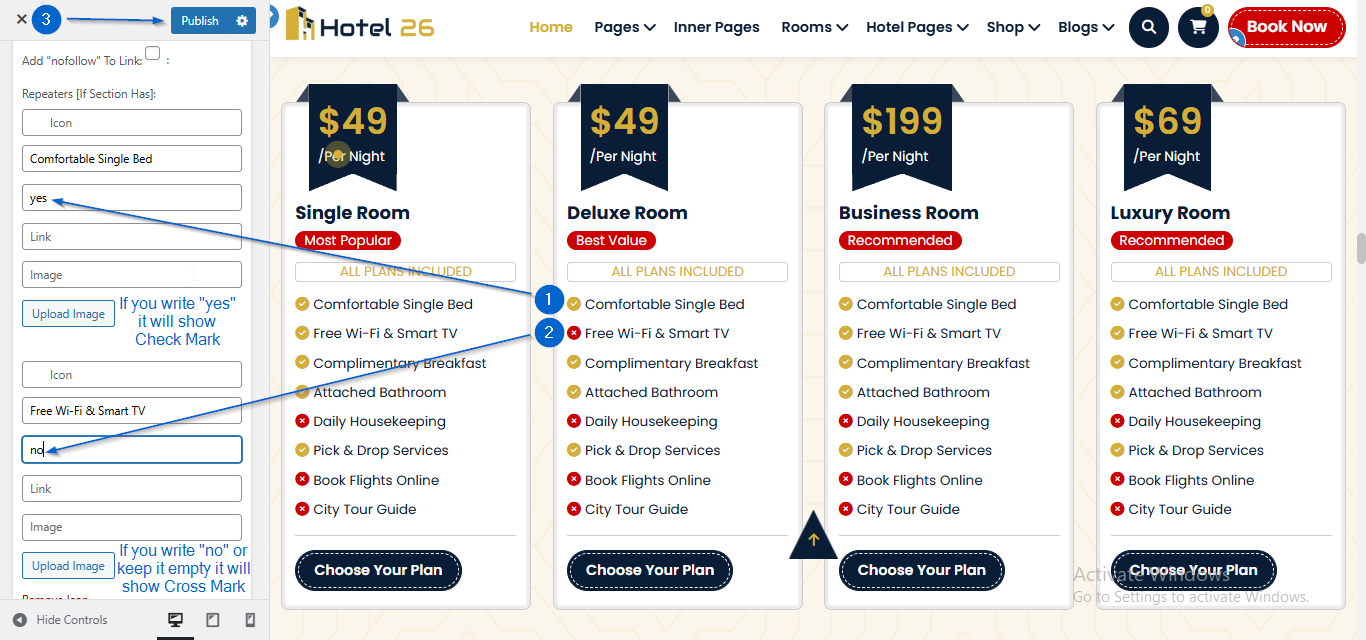
- In the third field, specify whether a plan feature should be included or excluded under the Repeaters [If Section has]:
- Enter Yes to display a check mark, indicating that the feature is included.
- Enter No, or leave the field empty, to display a cross mark, indicating that the feature is excluded.
- Click Publish
- Go to Appearance > Customize
- Open Frontpage Sections > Pricing Section
- Click to expand the Pricing toggle
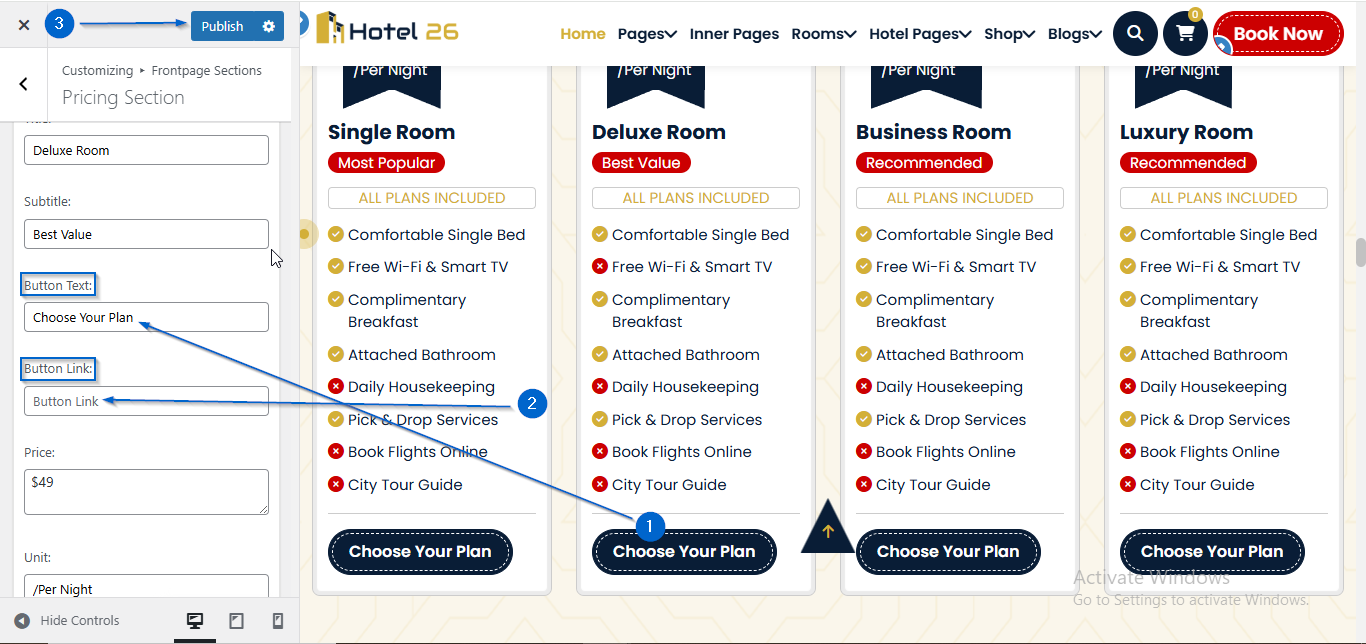
- Enter the text in the Button Text option and the link in the Button Link option.
- You can also configure new tab and nofollow settings from the checkbox.
- Click Publish
- Go to Appearance > Customize
- Open Frontpage Sections > Pricing Section
- Under the Pricing Column option, open the dropdown to choose the number of columns you want to display
- Click Publish