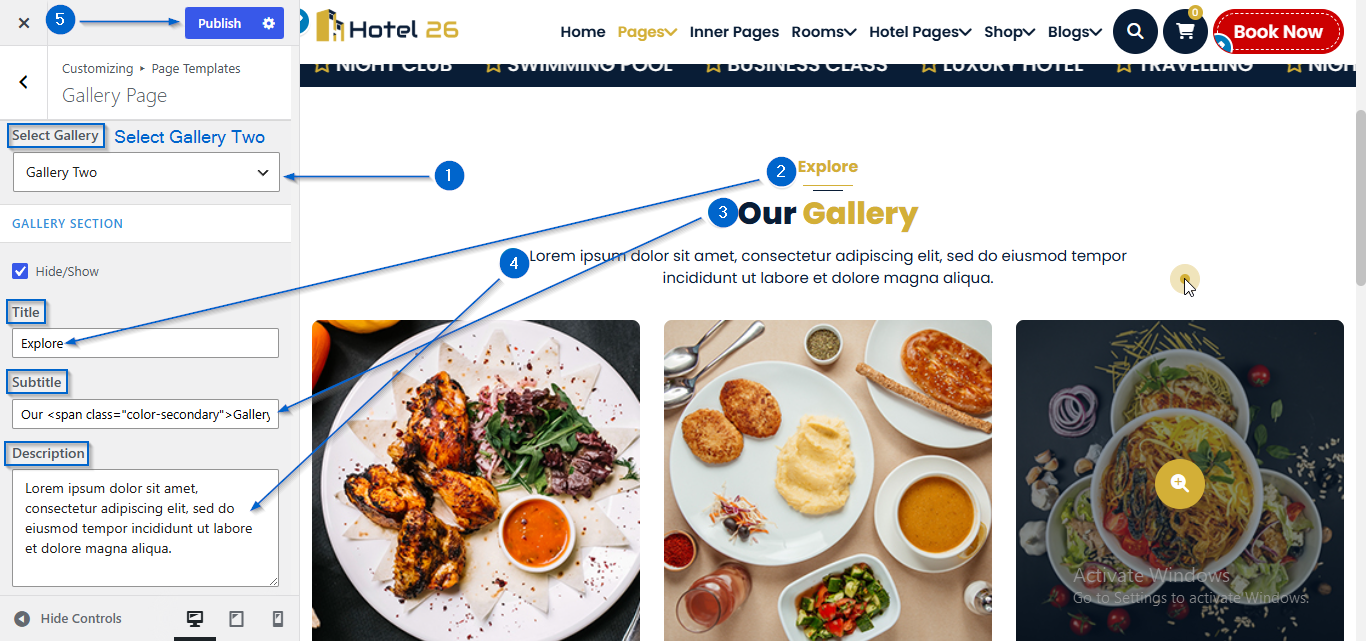
This section allows you to manage and customize the Gallery Page of your website.You can control the visibility, content, and layout using the available theme options.
Important :
- Make sure you are logged in to your WordPress Dashboard before following the steps below.
- Go to Appearance > Customize
- Open Page Templates > Gallery Page
- Use the Title, Subtitle, and Description options to add the section heading details.
- Click Publish
- Go to Appearance > Customize
- Open Page Templates > Gallery Page
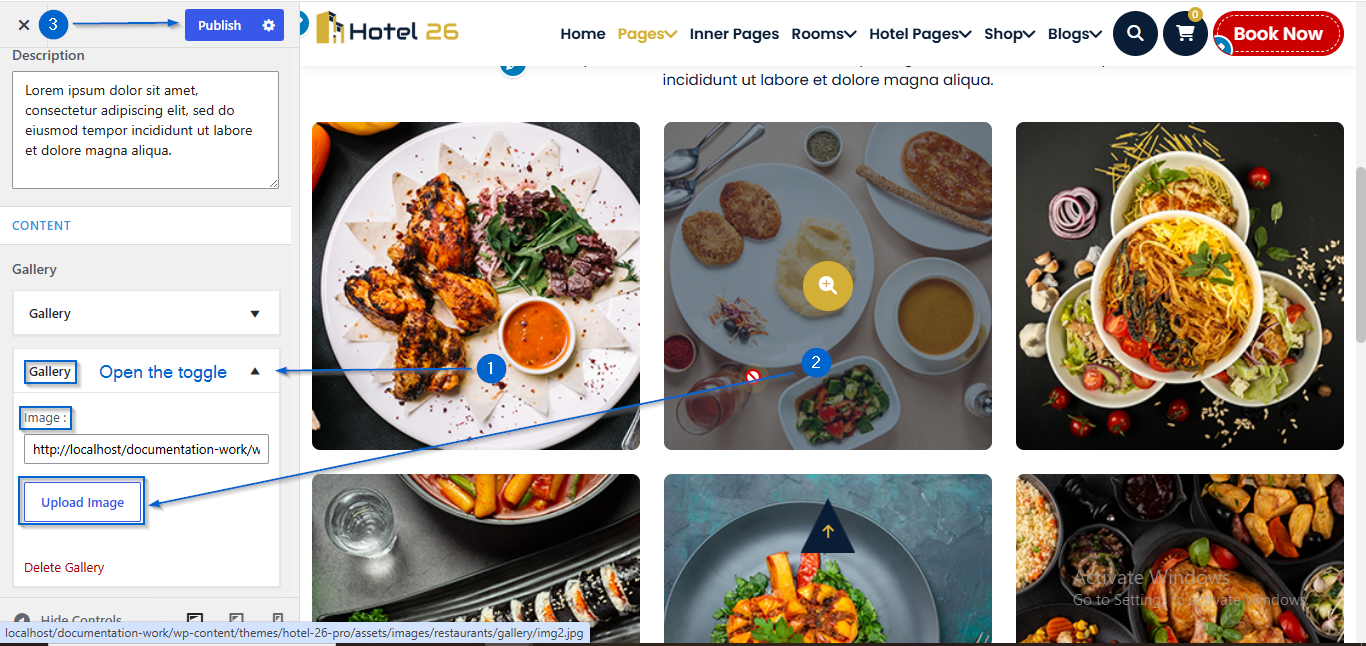
- Click to expand the Gallery toggle
- Click Upload Image under the Image: option
- Select an image of your choice
- Click Publish
- Go to Appearance > Customize
- Open Page Templates > Gallery Page
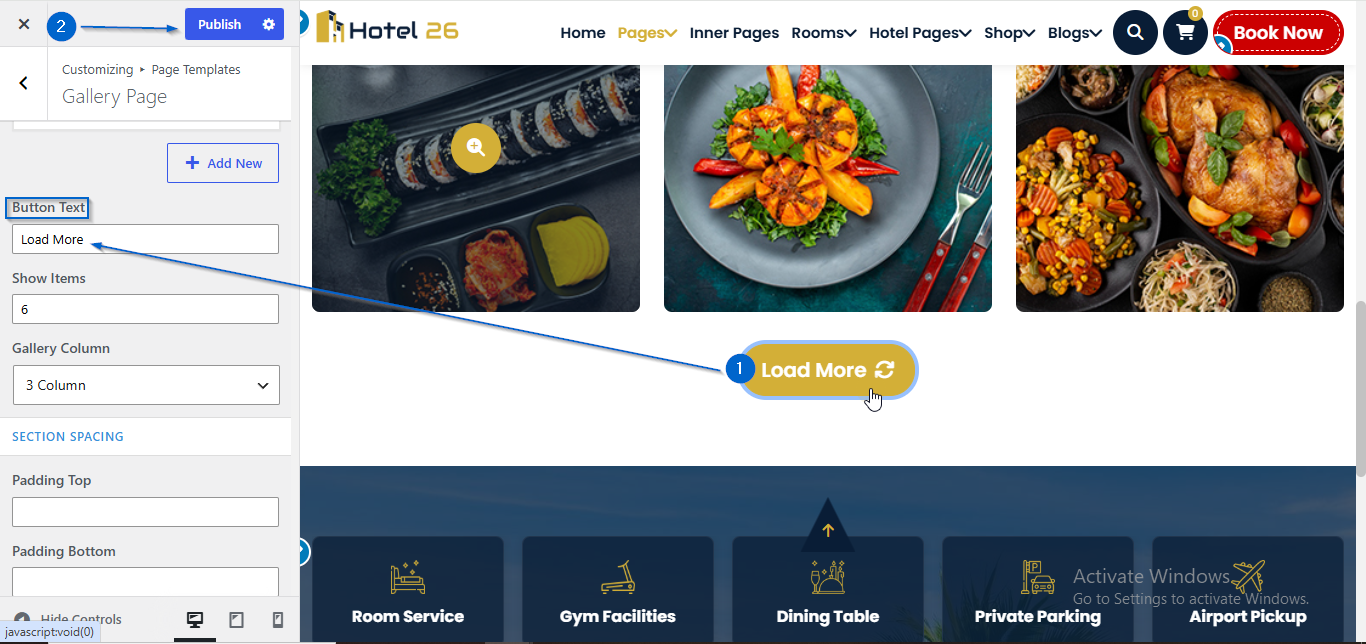
- Enter the text in the Button Text option
- Click Publish
- Go to Appearance > Customize
- Open Page Templates > Gallery Page
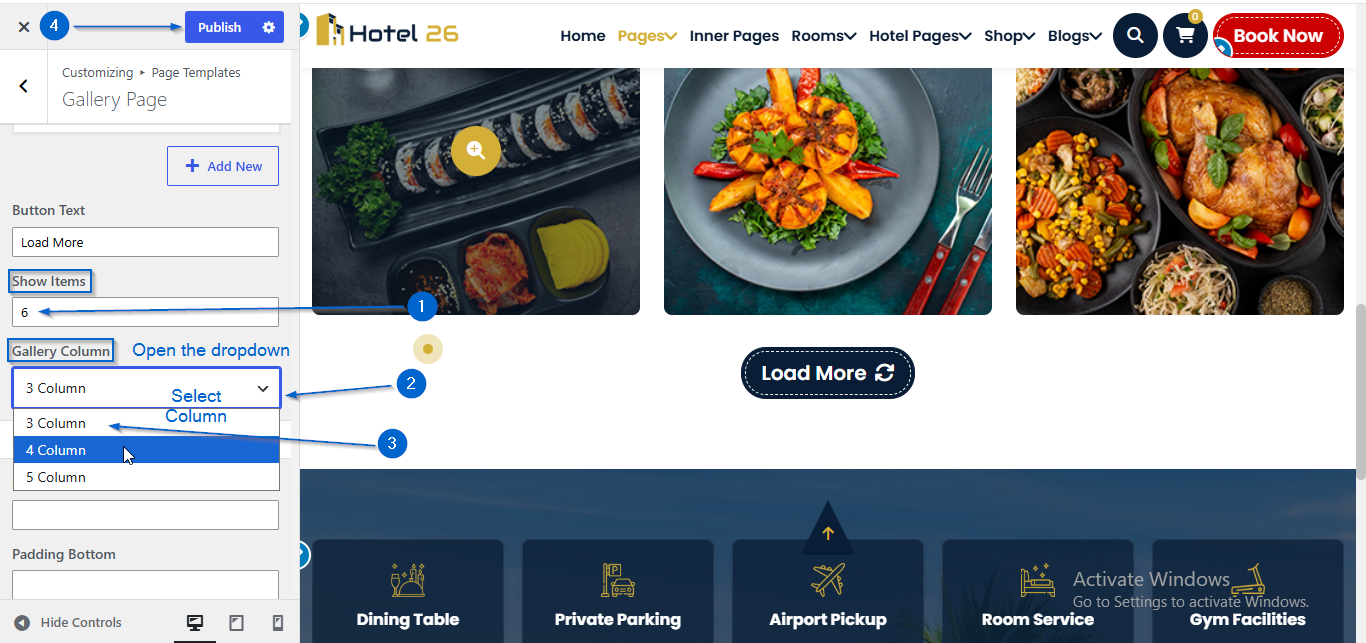
- Use the Show Items option to select the desired number of items to display.
- Under the Gallery Column option, open the dropdown to choose the number of columns you want to display
- Click Publish