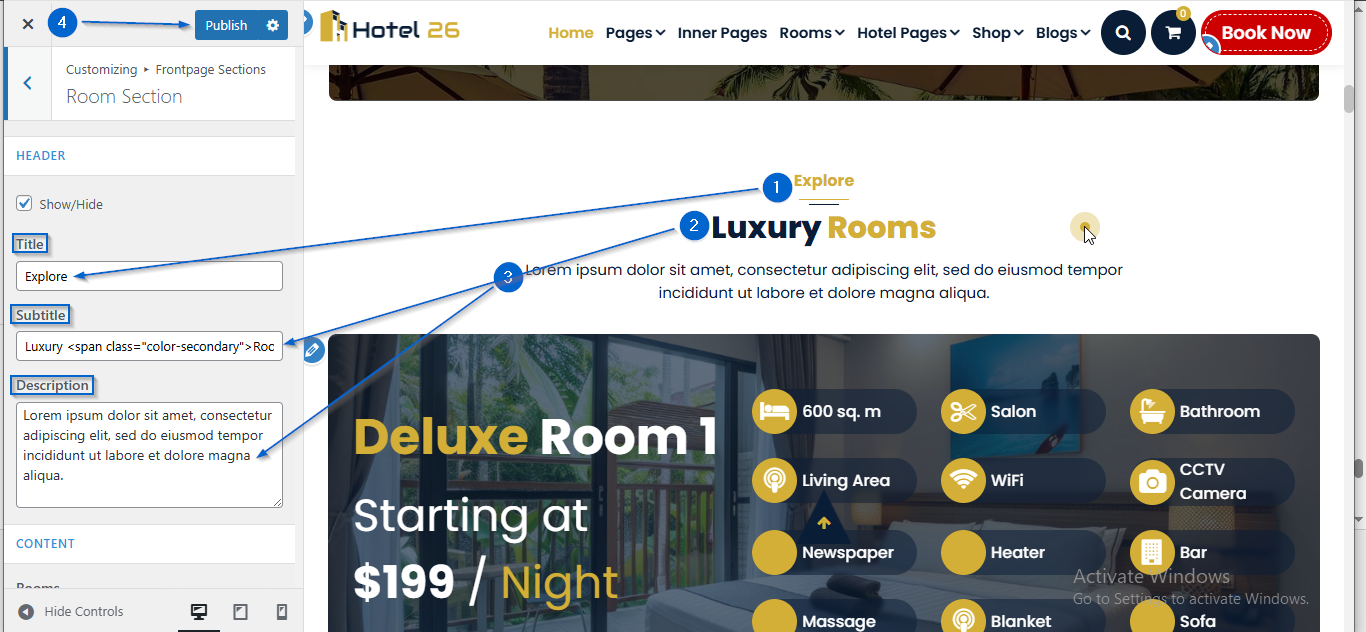
This section allows you to manage and customize the Room Section of your website.You can control the visibility, content, and layout using the available theme options.
Important :
- Make sure you are logged in to your WordPress Dashboard before following the steps below.
- Go to Appearance > Customize
- Open Frontpage Sections > Room Section
- Use the Title, Subtitle, and Description options to add the section heading details
- Click Publish
- Go to Appearance > Customize
- Open Frontpage Sections > Room Section
- Click to expand the Room toggle
- Use the Title and Subtitle options to edit the content
- Click Publish

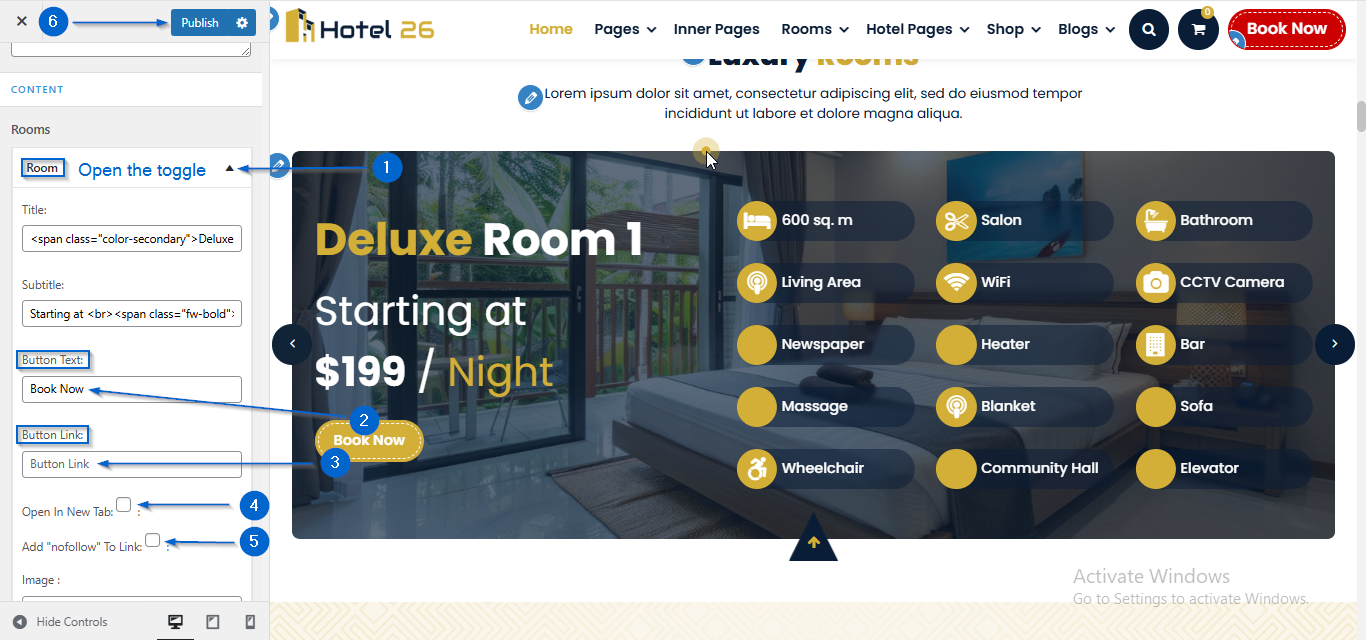
- Go to Appearance > Customize
- Open Frontpage Sections > Room Section
- Click to expand the Room toggle
- Enter the text in the Button Text option and the link in the Button Link option.
- You can also configure new tab and nofollow settings from the checkbox.
- Click Publish
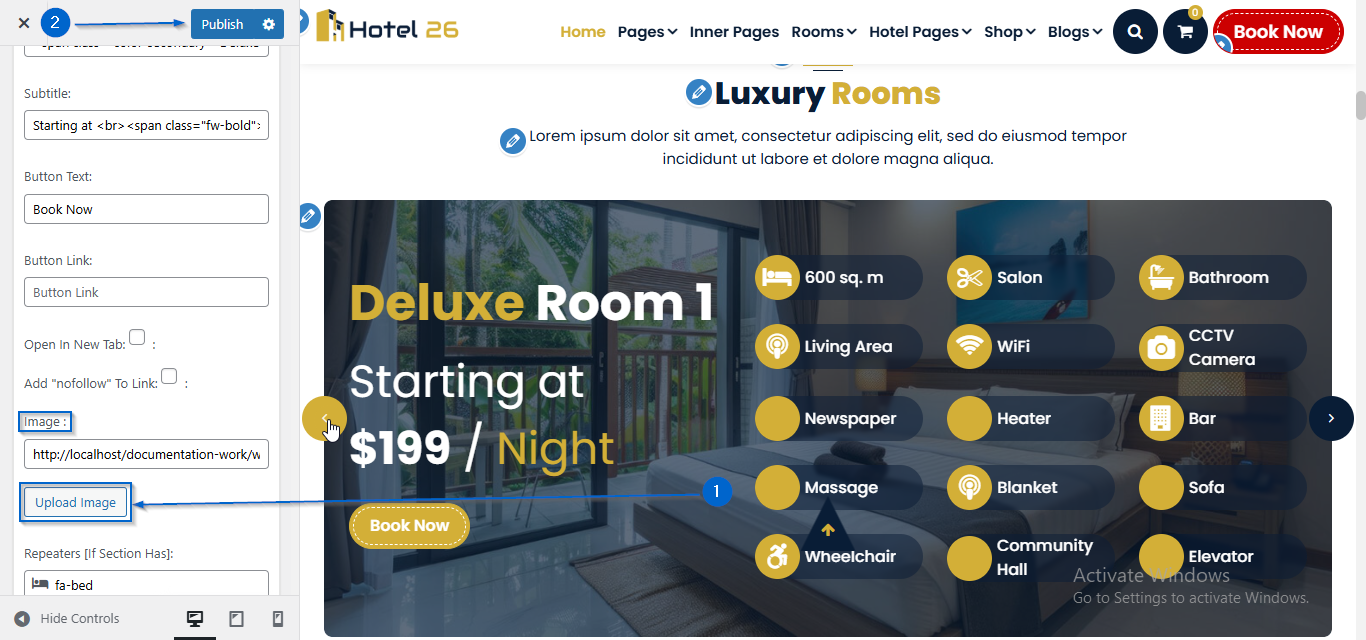
- Go to Appearance > Customize
- Open Frontpage Sections > Room Section
- Click to expand the Room toggle
- Click Upload Image under the Image : option
- Select an image of your choice
- Click Publish
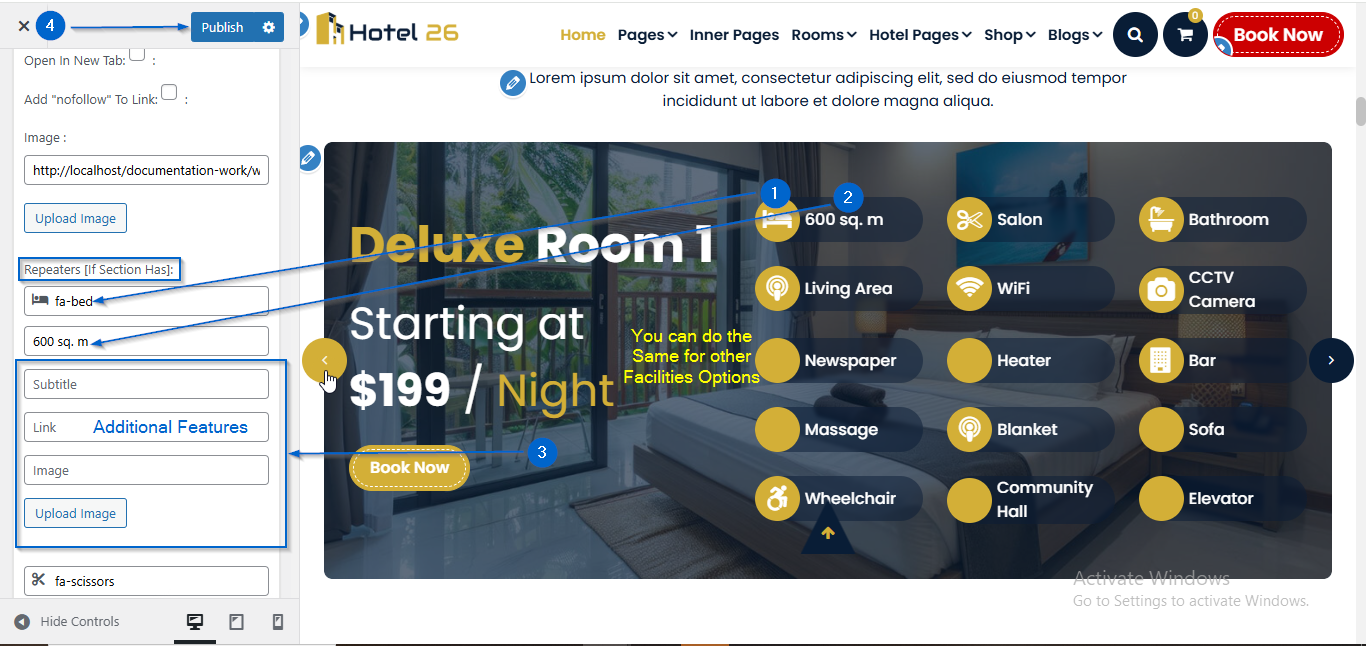
- Go to Appearance > Customize
- Open Frontpage Sections > Room Section
- Click to expand the Room toggle
- Add the icon in the first field and the title in the second field under the Repeaters [If Section Has] option
- You can repeat the same process for other Room Facilities options
- Click Publish